
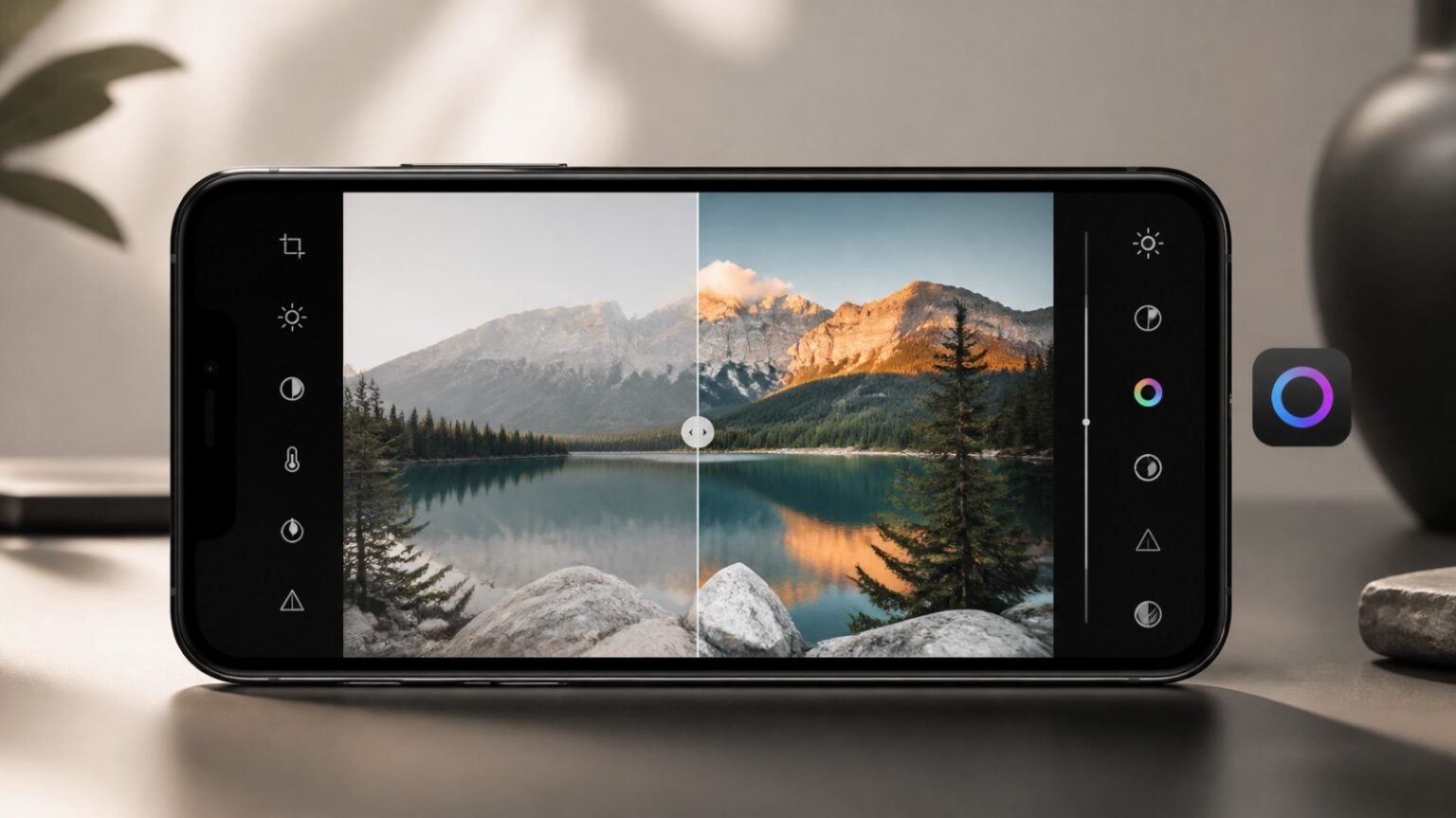
Your phone camera takes great shots, but a quick edit is often what turns a good photo into one worth posting. The problem is that most people don’t have 20 minutes to spend on every picture.
The good news is that you don’t need to. The right app can fix lighting, boost colors, crop, and apply a polished look in under two minutes.
In this guide, we picked the best apps for editing phone photos fast in 2026. They work on Android, iPhone, or both, and many are free. We also share simple tips and a quick workflow so you can edit like a pro without wasting time.
Table of Contents
- How We Picked the Best Fast Photo Editing Apps
- Quick Comparison Table
- Best Apps for Editing Phone Photos Fast
- Best Photo Editing Apps by Need
- Free vs Paid Photo Editing Apps
- Tips to Edit Phone Photos Faster
- Edit a Photo in Under 2 Minutes
- Common Mistakes to Avoid
- FAQs
- Final Verdict
How We Picked the Best Fast Photo Editing Apps
Not every powerful editor is a fast one. Some apps have hundreds of tools but bury them in menus. We looked at what actually saves time:
- Speed and ease of use: how quickly a beginner can get a good result without a tutorial.
- Auto-enhance and presets: one-tap fixes that give a good starting point.
- Free vs paid features: whether the useful tools are available without paying.
- Platform support: whether the app works on Android, iPhone, or both.
- Extra time-savers: tools like background removal, batch editing, and copy-paste edits.
Quick Comparison Table
| App | Best For | Price | Platform | Speed |
| Google Photos | One-tap auto fixes | Free (some features paid) | Android, iPhone | ⭐⭐⭐⭐⭐ |
| Snapseed | Free all-rounder | Free | Android, iPhone | ⭐⭐⭐⭐ |
| Lightroom Mobile | Presets and batch edits | Free + paid plan | Android, iPhone | ⭐⭐⭐⭐ |
| VSCO | Filters and clean looks | Free + membership | Android, iPhone | ⭐⭐⭐⭐ |
| Picsart | Creative edits and stickers | Free + paid plan | Android, iPhone | ⭐⭐⭐ |
| Canva | Edits plus designs | Free + paid plan | Android, iPhone | ⭐⭐⭐⭐ |
| Photoroom | Background removal | Free + paid plan | Android, iPhone | ⭐⭐⭐⭐⭐ |
| Remini | Enhancing blurry photos | Free + subscription | Android, iPhone | ⭐⭐⭐⭐ |
| Facetune | Portrait touch-ups | Paid | Android, iPhone | ⭐⭐⭐⭐ |
| Built-in editors | No-download edits | Free | Android, iPhone | ⭐⭐⭐⭐⭐ |
Pricing and free limits change often, so check each app’s store page before subscribing.
Best Apps for Editing Phone Photos Fast
1. Google Photos: Best for Quick, Free Auto-Fixes
If you want the fastest edit possible, start here. Google Photos is already on most Android phones and works well on iPhone too. Tap Edit, hit the auto-enhance option, and the app adjusts brightness, contrast, and color for you.
Why it’s fast:
- One-tap auto-enhance
- Simple sliders for light, color, and depth
- Easy cropping and rotating
- Your edits sync across devices
Best for: everyday photos that just need a quick polish.
Downside: it has fewer creative tools than dedicated editors, and some of the newer AI features may need a subscription or a supported device.
2. Snapseed: Best Free All-Rounder
Snapseed, made by Google, is a favorite because it’s free, has no watermark, and gives you real control without a steep learning curve.
Why it’s fast:
- The Tune Image tool fixes exposure, contrast, and warmth quickly
- The Healing tool removes small distractions in seconds
- Looks (preset styles) can be applied in one tap
- You can save your own Looks to reuse
Best for: people who want pro-style results without paying.
Downside: some tools sit behind gesture controls, so the first few edits feel slower until you learn them.
3. Adobe Lightroom Mobile: Best for Presets and Batch Editing
Lightroom is one of the best choices if you edit many photos in a similar style. Create or download a preset, apply it, and make small adjustments.
Why it’s fast:
- Presets give a consistent look in one tap
- You can copy edits from one photo and paste them onto others
- Strong control over light, color, and detail
- Free tier covers the basics
Best for: creators, bloggers, and travelers with lots of photos to edit.
Downside: advanced tools like selective edits and AI-powered features usually need a paid plan.
4. VSCO: Best for Filters and a Clean Look
VSCO is known for its film-style filters and soft, natural look. It’s a great pick if you care more about mood than heavy retouching.
Why it’s fast:
- Simple filter-first workflow
- Adjust the strength of a filter with one slider
- Clean, easy-to-learn interface
Best for: Instagram feeds and a consistent aesthetic.
Downside: the best presets and tools are locked behind a membership.
5. Picsart: Best for Creative Edits and Stickers
Picsart is more than a photo editor. It’s a creative toolbox with stickers, text, collages, effects, and AI tools.
Why it’s fast:
- Plenty of templates and one-tap effects
- Quick background and object tools
- Great for making social posts from a photo
Best for: fun, eye-catching edits for stories and reels.
Downside: the free version shows ads, and the number of options can slow beginners down.
6. Canva: Best for Edits Plus Ready-Made Designs
Canva is best when the photo is just one part of the final result, such as a post, a thumbnail, or a flyer. The photo editor handles basic fixes, and templates handle the rest.
Why it’s fast:
- Basic photo tools (crop, filters, adjust) are simple
- Thousands of templates to drop your photo into
- Easy resizing for different platforms
Best for: social media posts, thumbnails, and marketing graphics.
Downside: it’s not built for detailed photo retouching.
7. Photoroom: Best for Fast Background Removal
If you sell items online or need clean product photos, Photoroom is hard to beat. It cuts out the background automatically and lets you swap in a new one.
Why it’s fast:
- Automatic, accurate background removal
- Ready-made backgrounds and templates
- Batch editing for multiple product photos
Best for: online sellers, product shots, and profile pictures.
Downside: free exports may include a watermark, depending on the plan.
8. Remini: Best for Enhancing Blurry or Old Photos
Remini uses AI to sharpen and restore photos that are blurry, low-resolution, or old.
Why it’s fast:
- Upload, tap Enhance, and wait a few seconds
- Works well on faces and older family photos
Best for: restoring old pictures or rescuing a slightly blurry shot.
Downside: results can look overly smooth or artificial, and free use is limited.
9. Facetune: Best for Quick Portrait Touch-Ups
Facetune focuses on portraits and selfies, with tools for smoothing skin, brightening eyes, and whitening teeth.
Why it’s fast:
- Dedicated portrait tools in one place
- Simple, targeted edits
- Good for quick selfie fixes
Best for: selfies and profile photos.
Downside: it is mostly subscription-based, and heavy retouching can look unnatural. A light touch works best.
10. Built-In Editors (iPhone Photos and Samsung Gallery): Best for No-Download Edits
Don’t overlook what’s already on your phone. The built-in editors on iPhone and Samsung are faster than most people expect.
Why it’s fast:
- No download or sign-up needed
- Auto-enhance, crop, filters, and basic sliders
- Edits are saved right in your gallery
Best for: quick fixes when you don’t want to open another app.
Downside: limited advanced and creative tools.
Best Photo Editing Apps by Need
- Best for beginners: Google Photos or your phone’s built-in editor
- Best for Instagram and social media: VSCO, Lightroom Mobile, or Picsart
- Best for portraits and selfies: Facetune or Snapseed
- Best for removing backgrounds: Photoroom
- Best for editing many photos at once: Lightroom Mobile
- Best for restoring old photos: Remini
- Best all-around free option: Snapseed
Free vs Paid Photo Editing Apps: Which Should You Choose?
For most people, free is enough. Snapseed, Google Photos, and your built-in editor can cover almost everything a casual user needs.
Consider paying if you:
- Edit lots of photos in the same style (presets and batch editing help)
- Need clean, watermark-free exports for work or a business
- Want advanced AI tools like generative edits or one-tap restoration
- Post regularly and want a consistent look
A good approach is to start free, find which features you actually use, and upgrade only if a paid tool clearly saves you time.
Tips to Edit Phone Photos Faster
- Use presets and save your own. Once you find a look you like, save it as a preset. Apps like Lightroom and Snapseed let you reuse your settings.
- Copy and paste edit settings. Editing a batch from the same shoot? Edit one photo, then paste the settings onto the rest.
- Learn the few tools that matter. Most edits only need crop, exposure, contrast, and saturation. Master those four, and you’ll finish quickly.
- Shoot better to edit less. Clean your lens, tap to focus, and use natural light. A good photo needs far less editing.
- Don’t over-edit. Heavy filters and extreme sliders take longer and often look worse. Small changes usually win.
Edit a Photo in Under 2 Minutes
Use this simple checklist:
- Crop and straighten to fix the composition
- Tap auto-enhance for a quick starting point
- Adjust exposure if the photo is too dark or bright
- Add a little contrast so the image doesn’t look flat
- Boost warmth or color slightly for a natural feel
- Sharpen lightly, but not too much
- Apply a preset or filter at low strength
- Export at the highest quality
Common Mistakes to Avoid
- Over-saturating colors until skin looks orange
- Using filters at full strength
- Over-sharpening, which adds grain and halos
- Heavy skin smoothing that makes portraits look fake
- Exporting in low quality, which hurts the image after all your work
- Downloading too many apps instead of mastering one or two
Frequently Asked Questions (FAQs)
What is the fastest free app to edit photos on a phone?
Google Photos is one of the fastest because of its one-tap auto-enhance. Snapseed is the best free option if you want more control.
Which app is best for editing photos like a pro on a phone?
Adobe Lightroom Mobile and Snapseed are top choices. Lightroom is great for presets and consistent looks, while Snapseed offers strong free tools.
Is Snapseed better than Lightroom Mobile?
It depends on your needs. Snapseed is free and great for quick, powerful edits. Lightroom is better for batch editing, presets, and a consistent style, but some features need a paid plan.
Can I edit photos fast without downloading any app?
Yes. The built-in editors on iPhone and Samsung phones can handle auto-enhance, cropping, filters, and basic adjustments.
Which app is best for removing the background from a photo?
Photoroom is a great pick for fast, accurate background removal, especially for product photos.
Final Verdict: Which App Should You Use?
If you want the simplest and fastest option, start with Google Photos or your phone’s built-in editor. For the best free all-rounder, pick Snapseed. If you edit a lot and want a consistent look, Lightroom Mobile is worth trying.
For specific needs, choose Photoroom for backgrounds, Remini for restoring old photos, and Picsart or Canva for creative posts.
You don’t need ten apps. Pick one or two that fit your style, learn a few key tools, and you’ll be editing great photos in minutes.
