
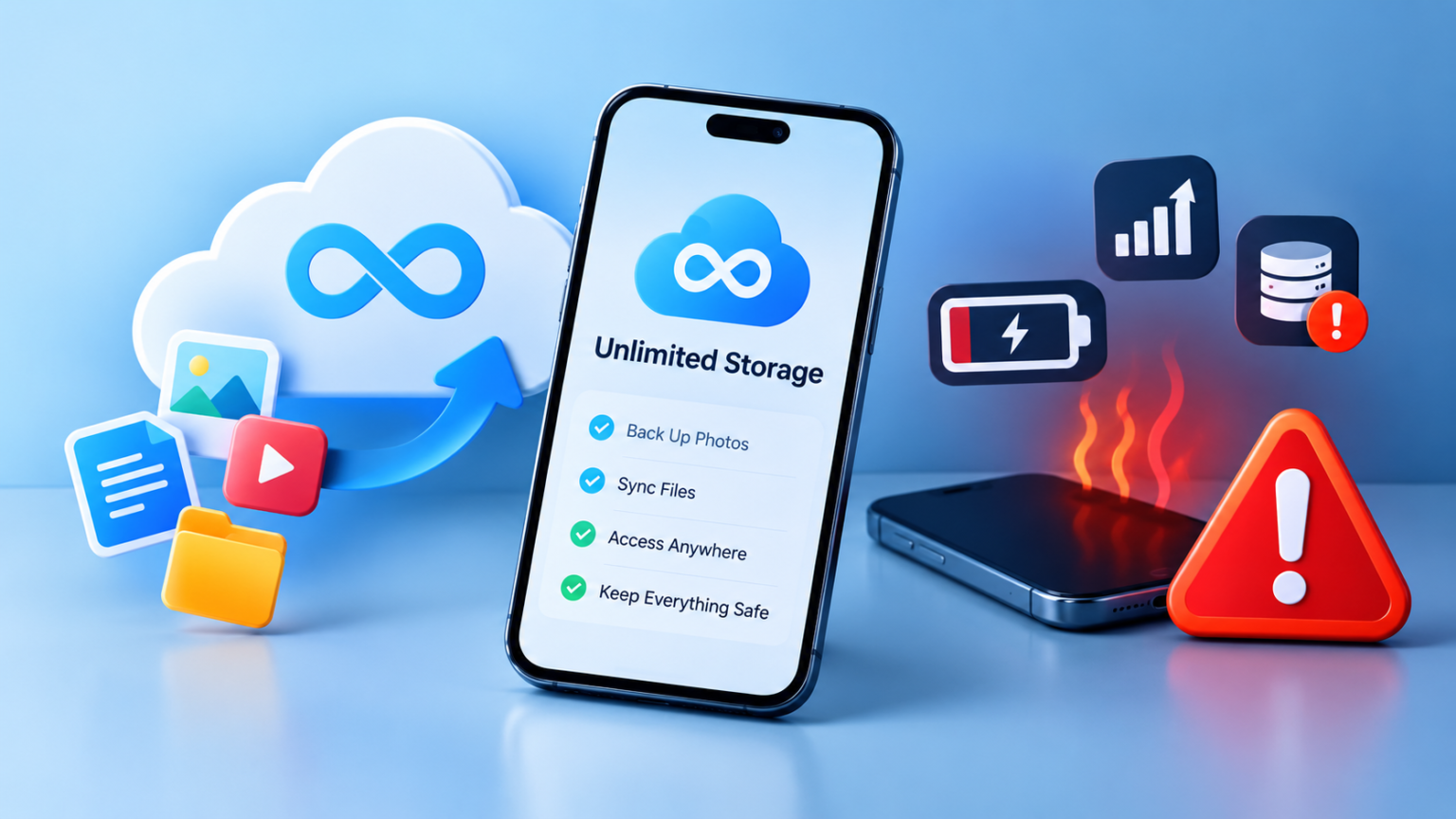
Introduction: Is Unlimited Storage Really Unlimited?
Unlimited storage apps are becoming popular because they promise free space, easy file management, and automatic backups for photos, videos, and documents. But is unlimited storage really unlimited? While these apps can make managing files easier, some may quietly drain your battery, consume mobile data, or fill your phone with cached files. Understanding how they work can help you protect your phone’s performance and avoid unexpected problems.
What Are Unlimited Storage Apps?
Unlimited storage apps are services that let you upload photos, videos, documents, and other files to online servers instead of keeping everything on your phone. These apps use cloud storage to help you access your files from different devices whenever you have an internet connection.
Cloud storage vs. local storage: Local storage is the space available on your phone for apps, photos, videos, and downloads. Cloud storage keeps your files on remote servers, allowing you to free up local space by removing backed-up copies from your device.
Some apps advertise unlimited storage to attract users who need extra space without paying for expensive upgrades. However, unlimited does not always mean unlimited access without restrictions. Certain services may limit file sizes, upload speeds, backup quality, or free features. Others may require a subscription after a trial period.
Before trusting an app with your files, check its storage policies and understand what its unlimited storage offer actually includes.
How Unlimited Storage Apps Can Ruin Your Phone
Unlimited storage apps can make file management easier, but some may create problems through constant syncing, background activity, and unnecessary features. Here are six ways these apps can affect your smartphone.
1. Background Activity Drains Your Battery
Many cloud storage apps automatically upload photos and videos whenever you capture them. Continuous syncing can keep the app active in the background, consuming battery power even when you are not using it. If uploads continue throughout the day, you may notice your battery draining faster than usual.
2. Cloud Syncing Can Consume Mobile Data
Automatic backups can use a surprising amount of mobile data, especially when uploading large videos or high-resolution photos. If your app is set to back up files over mobile networks, it could quickly consume your monthly data allowance. To avoid this, enable Wi-Fi-only backups in the app’s settings.
3. Cached Files Quietly Fill Up Your Storage
Cloud storage apps can save your files online, but they still need local storage to work properly. These apps may store temporary files, image thumbnails, and offline downloads on your phone. Over time, this data can take up a surprising amount of space, even when your photos and videos are backed up.
If your phone keeps running out of storage, it is important to understand what happens when your phone runs out of storage and how to prevent it. Regularly check your storage settings and remove unnecessary downloads or cached files to free up space.
4. Too Many Background Processes Can Slow Down Your Phone
Some storage apps continuously upload files, scan folders, and sync data in the background. These activities can use your phone’s processor and memory, making it harder to run multiple apps smoothly. You may notice slower app loading, lag during multitasking, or occasional freezing, especially on older and budget smartphones.
Understanding how smartphone performance works can help you recognize why background activity affects your device. If a storage app is slowing down your phone, try restricting its background activity and disabling unnecessary automatic syncing.
5. Privacy Risks Hidden Behind Free Storage
Some free storage apps may request access to your photos, contacts, location, or other personal information. Uploading private pictures and documents to an unfamiliar service can also create security risks. Before granting permissions, check the app’s privacy policy, the developer’s reputation, and its security features.
6. Ads and Notifications Can Ruin Your Experience
Free storage apps may rely on advertisements or promotional messages to generate revenue. Frequent ads, upgrade reminders, and unnecessary notifications can make everyday phone use frustrating. If an app constantly interrupts you or requests unnecessary permissions, consider disabling its notifications or switching to a more trustworthy alternative.
The Hidden Costs of “Free” and Unlimited Storage
Free unlimited storage apps may seem like a great deal, but their services often come with hidden restrictions. Some apps offer limited free storage and require users to upgrade when they reach a certain limit. Others may introduce subscription fees to unlock additional space, faster uploads, or automatic backups.
Upload speeds and file sizes can also be restricted, making it difficult to transfer large videos or important documents. Some services may reduce photo quality or limit access to certain features.
Another risk is that an app could change its storage policies, discontinue its free plan, or shut down completely. If you have no separate backup, you could lose access to important files. Always check the service’s terms and keep another copy of your valuable data.
Warning Signs That a Storage App Is Hurting Your Phone
Your phone may show several warning signs when a storage app is using too many resources. Recognizing these problems early can help you identify the cause before it affects your daily smartphone experience.
- Faster battery drain: Your battery runs out more quickly than usual, even when you are not actively using the app.
- Unexpected heating: Your phone feels warm during idle periods, possibly because uploads or background processes are still running.
- Disappearing storage space: Your available storage keeps decreasing despite backing up photos and videos to the cloud.
- Sudden mobile data usage: Your data allowance runs out faster because the app is uploading files automatically.
- Slow or unresponsive apps: Your phone struggles with multitasking, takes longer to open apps, or occasionally freezes.
How to Check Whether a Storage App Is Causing Problems
If you suspect a storage app is affecting your phone, you can use your phone’s built-in settings to find out how much power, storage, and data it is using.
Check Battery Usage
Open your phone’s Battery settings and check which apps have consumed the most power recently. If a storage app appears unusually high on the list, it may be uploading or syncing files in the background.
Review App Storage and Cache
Go to Settings > Apps, select the storage app, and check how much space it occupies. Look at its cache and stored data. If the app is using several gigabytes, clearing unnecessary cached files may free up space.
Monitor Mobile Data Consumption
Check your phone’s Data Usage section to see how much mobile data the app has consumed. High usage may indicate automatic photo, video, or document uploads. You can restrict mobile data access if you only want backups to happen over Wi-Fi.
Check Background App Activity
Look for options such as Background Activity, Background App Refresh, or Battery Usage in your phone’s settings. Restricting unnecessary background activity can reduce battery and performance issues while still allowing you to use the app manually.
Review App Permissions
Finally, check which permissions the app has. If a storage app has access to features it does not need, such as location or contacts, consider removing those permissions. Keeping permissions limited can improve privacy and reduce unnecessary background activity.
How to Fix Problems Caused by Unlimited Storage Apps
If an unlimited storage app is draining your battery, consuming mobile data, or taking up too much space, a few simple changes can help improve your phone’s performance.
- Disable unnecessary automatic backups: Turn off automatic uploads for folders you do not need to back up. You can also set backups to run only over Wi-Fi to avoid unexpected data usage.
- Restrict background data and battery usage: Open your phone’s app settings and limit unnecessary background activity. This can reduce battery consumption and prevent constant syncing.
- Clear cached files safely: Check how much storage the app uses and clear its cache if necessary. Avoid selecting Clear Data unless you understand its effects, as it may remove local settings or downloaded files.
- Remove unwanted offline downloads: Delete files saved for offline access when you no longer need them. This can free up valuable space on your phone.
- Uninstall suspicious or unnecessary apps: If an app continues causing problems, consider removing it and choosing a more reliable alternative. You can also explore these free apps to boost phone storage and speed for additional storage management options.
Safer Alternatives to Unlimited Storage Apps
If an unlimited storage app is causing problems, there are safer ways to manage your files without depending on a single service.
- Use trusted cloud storage services: Choose well-known storage providers with clear privacy policies, reliable security features, and transparent storage limits.
- Back up important files to a computer: Keep another copy of important photos, videos, and documents on your PC or laptop. This gives you access to your files even if a cloud service becomes unavailable.
- Use an external drive or USB storage: An external SSD, hard drive, or USB drive can provide additional storage without constantly syncing files through an app.
- Keep multiple copies of important files: For valuable photos and documents, having more than one backup reduces the risk of losing everything because of an account problem, app failure, or accidental deletion.
- Choose a storage plan that matches your needs: Instead of chasing unlimited storage, select a reliable plan with enough space for your actual usage. A predictable storage limit can be better than an unclear “unlimited” offer.
How to Choose a Safe Cloud Storage App
Not every cloud storage app is equally reliable. Before uploading your personal photos, videos, or documents, take a few minutes to check the service and understand what you are actually getting.
- Check the developer’s reputation: Choose apps from established developers with a strong track record. Look at recent user reviews and avoid apps with repeated complaints about privacy, unexpected charges, or lost files.
- Understand storage limits and terms: Read the storage plan carefully. Check whether “unlimited” storage has restrictions on file size, upload speed, quality, or usage. Also find out what happens when a free plan ends.
- Review privacy and security features: Look for features such as encryption, secure login, and two-factor authentication. Check what personal information the app collects and how your files are handled.
- Look for clear backup and restore options: A good storage app should make it easy to back up, access, download, and restore your files. Avoid services that make the backup process confusing or difficult.
- Avoid unrealistic promises: Be careful with apps that advertise completely free unlimited storage without clearly explaining how the service works. If an offer sounds too good to be true, check its terms before trusting it with important files
Conclusion: Think Twice Before Trusting Unlimited Storage
“Unlimited storage” may sound like the perfect solution, but it can come with hidden trade-offs, including battery drain, background activity, data usage, privacy concerns, and unexpected storage consumption. That does not mean every cloud storage app is bad, but you should understand what you are installing and what the service actually offers.
Managing your phone’s storage wisely means regularly checking app usage, clearing unnecessary files, limiting background activity, and keeping backups of important data. Choose trusted storage services with clear policies and reliable security features. By taking these simple steps, you can enjoy the convenience of cloud storage without unnecessarily sacrificing your phone’s battery life, privacy, or performance.
