
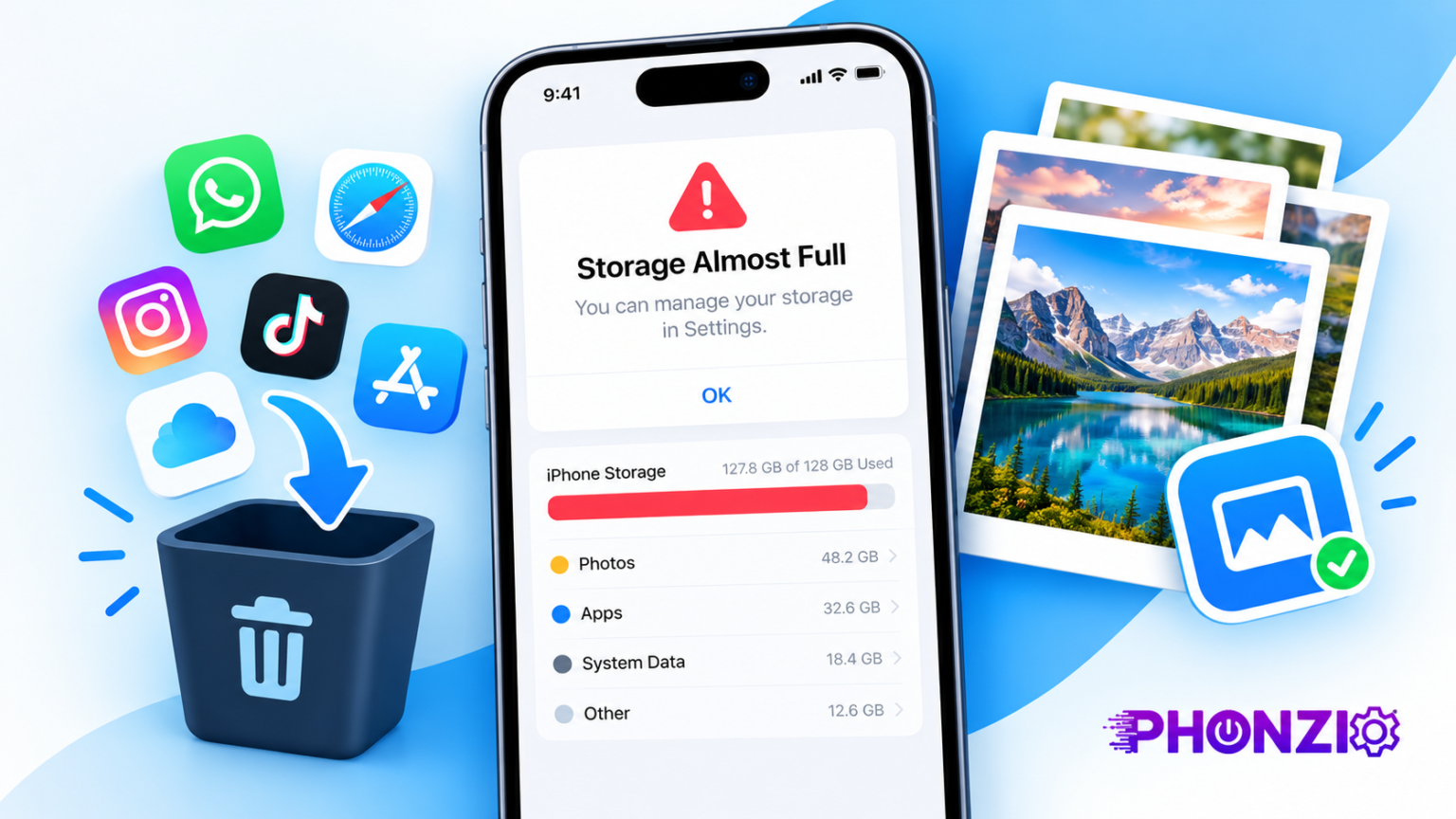
That dreaded “Storage Almost Full” pop-up always seems to show up at the worst moment, like right when you’re about to capture something you actually care about. And the usual advice? “Just delete some photos.” No thanks. Those pictures are your memories, and you shouldn’t have to pick between them and a phone that works.
Good news: you don’t have to. Your photos are probably not even the main problem. Let’s get your space back without touching a single picture.
Why Your Phone Is Always “Almost Full” (And Why It’s Rarely Your Photos’ Fault)
Photos get blamed because they’re the most visible thing on your phone. But apps, cached data, message attachments, offline downloads, and system files quietly pile up in the background. A few social apps alone can swallow several gigabytes of cache, and you’d never know unless you looked.
And don’t ignore the warning signs. What happens when your phone runs out of storage is no fun: crashing apps, failed updates, and photos that refuse to save. So before you panic about your gallery, let’s go hunting for the real culprits.
Quick Answer: The Fastest Ways to Get Space Back in 5 Minutes
Short on time? Do these first:
- Clear app cache for your biggest apps (social media and browsers are usual offenders)
- Offload or uninstall apps you haven’t opened in months
- Turn off auto-download for media in WhatsApp and other chat apps
- Delete old offline downloads from streaming apps
- Clear your browser’s downloads and site data
Most people free up a few gigabytes with just these five moves. Want the full treatment? Keep reading.
Find the Real Storage Hogs First
Don’t guess. Check what’s actually eating your space.
On iPhone: Go to Settings > General > iPhone Storage. You’ll see a color-coded breakdown and a list of apps sorted by size. Apple even adds suggestions at the top.
On Android and Samsung: Open Settings > Battery and device care > Storage (Samsung), or Settings > Storage (most other Android phones). You’ll see categories like images, videos, apps, and system, plus a list of large files.
Take two minutes here. It’ll tell you exactly where to focus, so you’re not clearing space randomly.
Clear Out Cache and Junk Files You Never Meant to Keep
Cache is temporary data apps store so they load faster. Helpful in small amounts, but it grows fast and rarely cleans itself up.
App cache and temporary files. On Android, go to Settings > Apps, pick the app, tap Storage, then Clear cache. It won’t log you out or delete your account. On iPhone, there’s no one-tap cache button for most apps, but deleting and reinstalling an app (or offloading it, more on that below) does the trick.
Browser data and old downloads. Your browser holds site data, history, and every PDF or file you’ve ever downloaded. Clear the site data in Chrome or Safari settings, then open your Downloads folder and toss anything you don’t need. That “temporary” file from 2023? Probably still there.
Offload or Uninstall Apps You Barely Use
We all have those apps we installed once for a trip or a coupon and never opened again.
Offload on iPhone. Go to Settings > General > iPhone Storage, tap an app, and choose Offload App. It removes the app itself but keeps your documents and data, so if you reinstall later, everything’s right where you left it. You can even turn on automatic offloading for unused apps.
Hibernate and uninstall on Android. Samsung and other Android phones can put unused apps to sleep or let you remove them in a couple of taps. If you’re not sure about an app, check when you last used it in your storage settings. If it’s been months, it can go. You can always grab it again from the Play Store.
Tame Messaging Apps: The Sneaky Space Thieves
This one surprises people. Messaging apps save every photo, video, voice note, and GIF anyone sends you, including all those group chat memes.
WhatsApp, Telegram, and iMessage media. In WhatsApp, go to Settings > Storage and data > Manage storage. It sorts chats by size and lets you clear large files by chat. In Telegram, use Settings > Data and Storage > Storage Usage. On iPhone, Messages attachments show up in your storage list, and you can review large ones there.
Auto-download settings to switch off today. Head into each app’s data settings and set media auto-download to Wi-Fi only, or off entirely. That one change stops the slow creep before it starts.
Shrink Your Music, Podcasts, and Offline Downloads
Offline listening is great until you realize you’ve got 12 GB of playlists and shows you’ve already finished.
Streaming apps and offline libraries. Open Spotify, Apple Music, YouTube Music, or Netflix and check the downloads section. Remove anything you’re done with. Also look for a “download quality” setting. Dropping it a notch saves a surprising amount of room with barely any difference in sound.
Podcast and video downloads you forgot about. Many podcast apps auto-download new episodes. Turn that off or limit it to the latest few, and delete played episodes automatically.
Move Files Off Your Phone, Not Out of Your Life
Here’s where the “keep everything” mindset pays off. You don’t have to delete anything. You just have to store it somewhere else.
Cloud storage options compared. iCloud, Google One, and Samsung Cloud all work well, and Dropbox or OneDrive are solid too. iCloud is the smoothest if you’re all-in on Apple. Google fits Android best and works fine anywhere. Free tiers are small, but a basic paid plan usually costs a couple of dollars a month. If you’re budget-conscious, compare plans before you commit, because the price jump between tiers can be bigger than it looks.
SD cards and USB drives for Android. Many Android phones still accept microSD cards, which are cheap and perfect for videos, music, and downloads. If your phone doesn’t have a slot, a USB-C flash drive works too.
Backing up to a computer. Plug in your phone and copy your videos, documents, and old files to your laptop or an external drive. It’s free, and it’s a great backup anyway.
Switching to a new Samsung? Moving to a new phone is the perfect time to start fresh. Our guide on how to move pictures from iPhone to Samsung walks you through five free methods, including Smart Switch, Google Photos, and the computer route.
Keep Your Photos but Make Them Smaller
This is the part you came for. You can keep every photo and still reclaim a ton of room.
Optimize storage on iPhone. Turn on iCloud Photos, then choose Optimize iPhone Storage in Settings > Photos. Your phone keeps lightweight versions on the device and stores the full-resolution originals in iCloud. Everything stays viewable, and you can download originals anytime.
“Free up space” in Google Photos and Samsung Gallery. Once your photos are safely backed up, Google Photos has a Free up space tool that removes the local copies while keeping them in the cloud. Samsung’s Gallery with cloud sync offers similar options. Just confirm the backup finished before you use it.
Storage-saving camera settings. Switch iPhone’s camera format to High Efficiency (HEIC), which produces smaller files with the same quality. For video, shooting in 1080p instead of 4K cuts file size dramatically, and most of us never notice the difference on a phone screen. Save 4K for moments that really matter.
Dealing With “System Data” and “Other” Storage
You’ve probably seen that mysterious gray chunk labeled System Data or Other and wondered what it is.
What it is and why it balloons. It’s a mix of cache, logs, temporary files, and leftovers from updates. It can grow into tens of gigabytes without any warning.
Safe ways to shrink it. Restarting your phone clears some of it. Updating your OS can help, since updates often tidy up old files. On iPhone, offloading and reinstalling heavy apps frequently drops that number. If it’s still huge, a backup followed by a reset is the nuclear option, but try everything else first.
Set It and Forget It: Habits That Keep Storage Free
A one-time cleanup is great, but habits keep it that way.
Auto-delete old messages and downloads. Set Messages on iPhone to keep conversations for one year instead of forever, and enable automatic cleanup wherever your apps offer it.
A quick monthly storage check. Put a reminder on your calendar. Two minutes in your storage settings once a month will catch problems long before the pop-up does.
Final Thoughts: A Full Phone Doesn’t Mean a Bad Phone
A full phone isn’t a sign you take too many pictures. It usually means the junk has been stacking up unnoticed. Clear the cache, trim apps, tame your chats, and move big files elsewhere, and you’ll often get back more room than you expected, with all your photos still in place.
FAQs
Will clearing cache delete my photos?
No. Cache holds temporary app data, not your pictures, videos, or documents. It might make an app load a bit slower the next time you open it, but that’s it.
Is cloud storage worth paying for?
For most people, yes. A small monthly fee buys you backup, easy access across devices, and a lot of breathing room on your phone. Start with the free tier and upgrade when you actually need it.
Why does my storage stay full after I delete things?
Deleted items often sit in a “Recently Deleted” or trash folder for up to 30 days. Empty those folders manually, and restart your phone to refresh the storage reading.
