
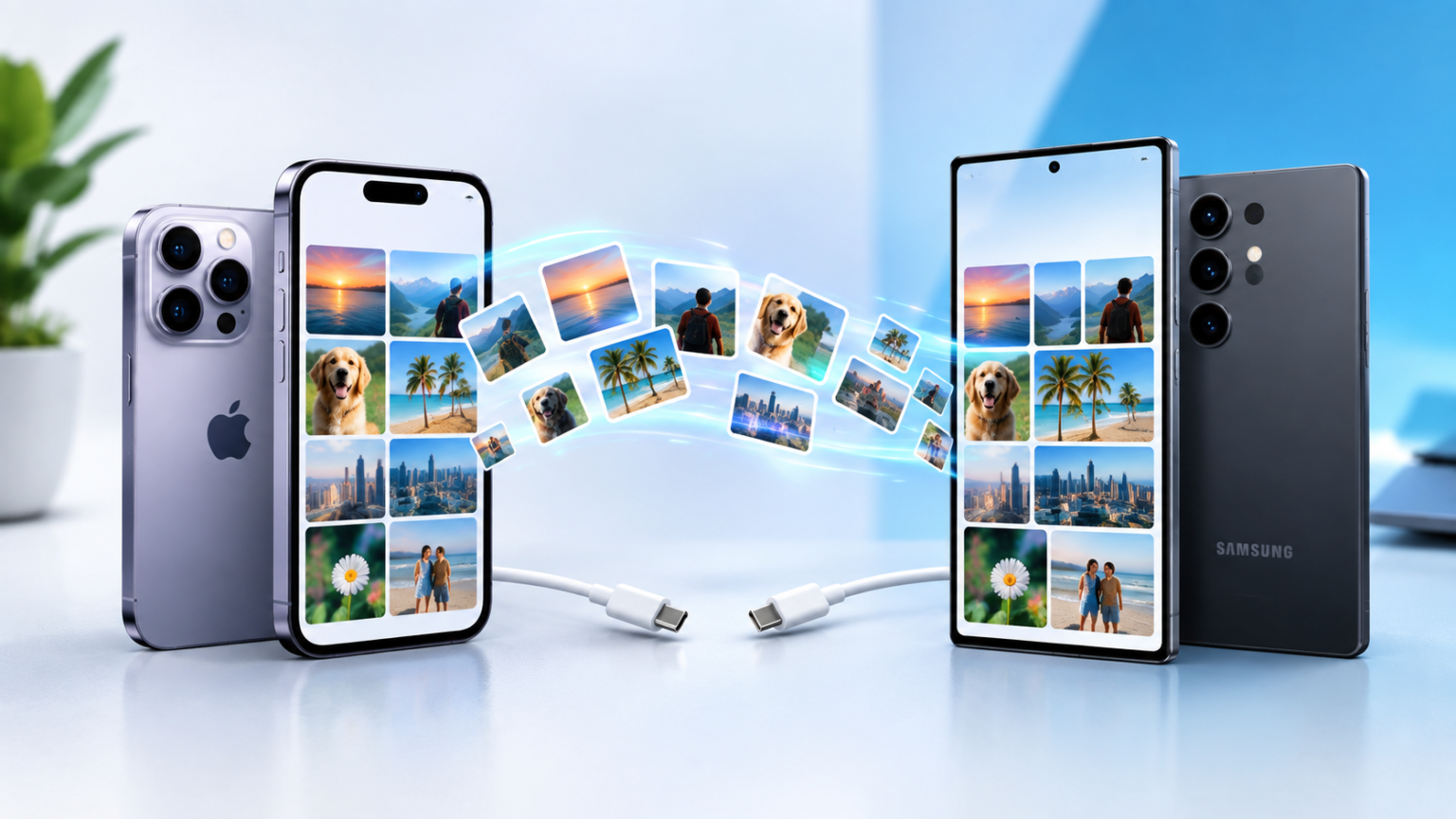
You just got a new Galaxy, and your photos are still stuck on your old iPhone. Annoying, but very fixable.
There are five solid ways to move them, and the best one depends on what you have on hand: a cable, Wi-Fi, a computer, or just a bit of patience. This guide walks through every method step by step. It also covers the stuff most guides skip: why photos go missing, what happens to Live Photos, and how to make sure everything arrived before you wipe your iPhone.
Every method here is free.
Quick Answer: Which Method Should You Use?
Short answer: Use Smart Switch with a cable. It’s the fastest and most reliable way to transfer photos from an iPhone to a Samsung, and it handles large photo and video libraries without fuss.
If your situation is different, here’s how to pick:
- Have a cable and want the easiest option? Go with Smart Switch (cable). It’s quick and moves lots of photos at once.
- No cable, phones side by side? Use Smart Switch (wireless). No cable needed, but it’s slower and can drop if a screen locks.
- Want your photos backed up online too? Use Google Photos. It works on any phone and keeps a cloud copy. Free storage is 15 GB, so check how much you need first.
- Photos stored in iCloud? Download them from iCloud.com in your Samsung’s browser. Best for smaller batches, and no extra app is needed.
- Nothing else working? Use a computer and drag and drop. It’s the most dependable fallback, and you get a backup copy as a bonus.
Quick picks:
- Fastest: Smart Switch with a cable
- Best free backup: Google Photos
- Best for huge libraries: cable or computer
Before You Start: 5-Minute Checklist
Do these first. They’ll save you a lot of headaches.
1. Check that your photos are really on your iPhone
This is the big one. If you use iCloud Photos with Optimize iPhone Storage turned on, your iPhone may only hold small previews, while the full-size originals sit in iCloud. A cable transfer can only move what’s actually on the phone. That’s why people say “half my photos are missing.”
To check, go to Settings > [your name] > iCloud > Photos. If Optimize iPhone Storage is selected, switch to Download and Keep Originals and let your iPhone finish downloading before you transfer. This needs free space on the iPhone and a good Wi-Fi connection, and it can take a while.
2. Check free space on your Samsung
Photos and 4K videos add up fast. As a rough rule, if your iPhone shows 60 GB of photos and videos, your Samsung needs at least that much free, plus a little extra. If it doesn’t have the room, use Google Photos and download only what you need.
Gamers: if you plan to install large games right after setup, consider storage now. Photos plus a few large games can fill a 128 GB phone quickly.
3. Charge both phones
Keep both above 50%, and plug them in if you’re moving a lot.
4. Grab the right cable
Newer iPhones (iPhone 15 and later) use USB-C, so a USB-C to USB-C cable works. Older iPhones use Lightning, so you’ll need a USB-C to Lightning cable or an adapter.
5. Update both phones
Updating iOS on the iPhone and the software on the Samsung cuts down on random errors.
Method 1: Smart Switch with a Cable (Fastest)
Smart Switch is Samsung’s own transfer app, and it comes preinstalled on Galaxy phones. Using it with a cable is the most reliable option.
- Open Smart Switch on your Samsung.
- Tap Receive on this phone, then iPhone/iPad.
- Tap Cable, then Next.
- Plug the cable into both phones. Use an adapter if your iPhone needs one.
- On your iPhone, tap Trust and enter your passcode.
- On your Samsung, tap Next.
- Choose Photos and videos. Untick everything else if you only want pictures, then tap Transfer.
- Wait for it to finish. Don’t unplug until Smart Switch says it’s done.
Good for: big libraries and anyone who wants it done fast. Watch out for: photos that live only in iCloud and aren’t stored on the phone (see the checklist above).
Method 2: Smart Switch Wireless (No Cable Needed)
No cable? You can do the same job over Wi-Fi. The steps depend on your Samsung’s software version.
On newer Galaxy phones (One UI 9 or later)
- Open Smart Switch on your Samsung and tap Receive on this phone.
- Choose iPhone or iPad.
- Open your iPhone’s Camera app and scan the QR code shown on your Samsung.
- Wait for the transfer to finish.
On older Galaxy phones (One UI 8.5 or earlier)
- Install and open the Smart Switch app on your iPhone, and allow the permissions it asks for.
- Choose Wireless on both phones.
- Scan the QR code from your iPhone and tap Join.
- On your Samsung, select Photos and videos, then tap Transfer.
Good for: small to medium libraries, or when you don’t have the right cable. Watch out for: slower speeds, and it can drop if either phone locks or loses Wi-Fi. Keep both screens on and the phones close together. If it fails, switch to the cable method.
Method 3: Google Photos (Best for Backup)
This one works on any Android phone, and you end up with a backup in the cloud too.
On your iPhone
- Install Google Photos and sign in with your Google account.
- Allow access to all your photos.
- Turn on Backup.
- Keep the app open and the phone on Wi-Fi until the upload finishes. For big libraries, this can take hours, so plug the phone in.
On your Samsung
- Sign in to Google Photos with the same account.
- Your photos will show up there. Select the ones you want and tap Download to save copies on your phone.
Heads up on storage: a free Google account includes 15 GB, shared across Gmail, Drive, and Photos. If your library is bigger than that, you’ll need to pay for more space or pick a different method. Check Google’s current plans before you commit.
Good for: people who want an online backup and anyone short on phone storage.
Method 4: iCloud (No App Needed)
If your photos are in iCloud, you can grab them right from your Samsung.
Option A: Download from iCloud.com
- Open icloud.com in Chrome or Samsung Internet on your Galaxy and sign in.
- Open Photos.
- Select the photos you want (long-press to select several).
- Tap the download option.
- Choose Unmodified Originals to keep full quality, or Most Compatible for JPEG files that open anywhere.
- Find your download in My Files. If it arrives as a zip file, tap it to extract.
Option B: Pull from iCloud with Smart Switch
Smart Switch can also log in to your Apple account and download your photos and videos directly.
- Open Smart Switch on your Samsung and tap Receive on this phone, then iPhone/iPad.
- Tap Get data from iCloud and sign in with your Apple ID.
- Approve the alert on your iPhone and enter the verification code on your Samsung.
- Select Photos and videos, then tap Transfer.
Good for: small batches, or when your iPhone is already wiped or unavailable. Watch out for: browser downloads get clunky with thousands of photos, and you’ll usually need to grab them in batches.
Method 5: Use a Computer (Best Backup Plan)
Old school, but it works when everything else fails. You also end up with a copy on your computer.
On Windows
- Plug your iPhone into the PC, unlock it, and tap Trust.
- Open This PC, then your iPhone, then Internal Storage, then DCIM.
- Copy your photo folders to a new folder on your PC.
- Plug in your Samsung. Pull down the notification shade and set USB to File transfer.
- Paste your photos into the DCIM or Pictures folder on the Samsung.
If your PC doesn’t see the Samsung, install Apple’s free Apple Devices app from the Microsoft Store and try again.
On Mac
Macs can’t read Android phones on their own. The simplest route:
- Export your photos from the Photos app into a folder.
- Install a free file-transfer app for Android, such as OpenMTP.
- Plug in your Samsung, set USB to File transfer, and drag the folder across.
No app? Upload the folder to Google Drive from your Mac, then download it on your Samsung.
Good for: huge libraries and anyone who wants a safe extra copy.
Using a Pixel, Xiaomi, OnePlus, or Another Android Phone?
Smart Switch is built for Samsung. If you have a different Android phone, methods 3, 4, and 5 work the same way. Google Photos and the computer method are the safest bets. Many Android phones also offer their own transfer tool during first-time setup, so look for a “copy data from old phone” option.
What Happens to Live Photos, HEIC Files, Albums, and Dates?
Live Photos. These are photos with a couple of seconds of motion. How they show up on your Samsung depends on the method. You may get a regular still photo, or a still plus a separate short video. If Live Photos matter to you, test a handful first and check how they look before moving everything.
HEIC files. iPhones save photos in a space-saving format called HEIC. Recent Galaxy phones open them fine, but older computers and some apps may not. Two easy fixes: pick Most Compatible when downloading from iCloud, or change your iPhone’s setting at Settings > Camera > Formats > Most Compatible for future photos.
Albums. Don’t count on your albums coming across neatly. Some methods dump everything into one big pile. If your albums matter, export them one at a time, or jot down the album names so you can rebuild them.
Dates. Most methods keep the original date taken. But downloads from some apps and messaging services can reset dates to “today.” After transferring, scroll back through your Gallery and make sure old photos still show their real dates.
Easy to forget. Shared Albums, the Hidden album, and Recently Deleted don’t always come along. Check these on your iPhone before you wipe it.
Photos Missing or Transfer Stuck? Quick Fixes
- Photos missing after transfer: You probably have Optimize iPhone Storage on. Turn on Download and Keep Originals, wait for the downloads to finish, then try again.
- Stuck at one percentage: Unplug, restart both phones, and try the cable method again. A different cable can also help.
- The Trust pop-up never appears: Unplug, unlock your iPhone, and plug back in. Still nothing? Go to Settings > General > Transfer or Reset iPhone > Reset > Reset Location & Privacy, then reconnect.
- Wireless keeps dropping: Keep both screens on, stay close together, turn off battery saver, and switch to a cable if it keeps failing.
- Google Photos upload is slow: Keep the app open, stay on Wi-Fi, and leave the phone charging.
- Not enough space: Free up room on the Samsung, or use Google Photos and download only what you need.
- Duplicates after trying twice: Use the duplicate cleanup tools in Google Photos or your Gallery app to remove the extras.
- Photos look blurry or small: You may have downloaded compressed copies. Redo the download with the original-quality option.
Check Everything Before You Erase Your iPhone
Don’t wipe your old phone the same day. Here’s a simple routine:
- Compare the counts. On your iPhone, open Photos and scroll to the bottom for the total number of photos and videos. Do the same in your Samsung Gallery.
- Spot-check. Open your oldest photos, a few videos, and a couple of Live Photos. Make sure they open and look right.
- Check your favorites. Look for the pictures you’d hate to lose, like family shots and special events.
- Keep a backup. If you can, keep a second copy on a computer or in Google Photos.
- Wait a few days. Use your new phone for a while before you erase the old one.
One more thing: once you’ve fully switched, turn off iMessage so texts from iPhone friends don’t go missing. Apple has a deregister page for this, and Smart Switch will also remind you.
FAQ
How long does it take?
It depends on your library size and the method. Cable is usually the quickest, wireless is slower, and cloud methods depend on your internet speed. A small library can take a few minutes. A big one with lots of video can take hours.
Can I move photos from iPhone to Samsung without Wi-Fi?
Yes. Use a cable with Smart Switch, or use a computer.
Can I do it without a computer?
Yes. Smart Switch (cable or wireless), Google Photos, and iCloud all work with just your two phones.
Why are some of my photos missing after the transfer?
Almost always because they’re stored in iCloud and not on your iPhone. Turn on Download and Keep Originals, let it finish, and transfer again.
Will my albums move over?
Not reliably. Photos usually arrive, but albums may not. Export important albums one at a time if you want to keep them organized.
Conclusion
If you just want it done, use Smart Switch with a cable. It’s fast and simple. If you want a backup or don’t have a cable, go with Google Photos. And if something goes wrong, the computer method will almost always save you.
Whichever way you go, compare your photo counts and give it a few days before you erase your iPhone. Enjoy the new phone!
