
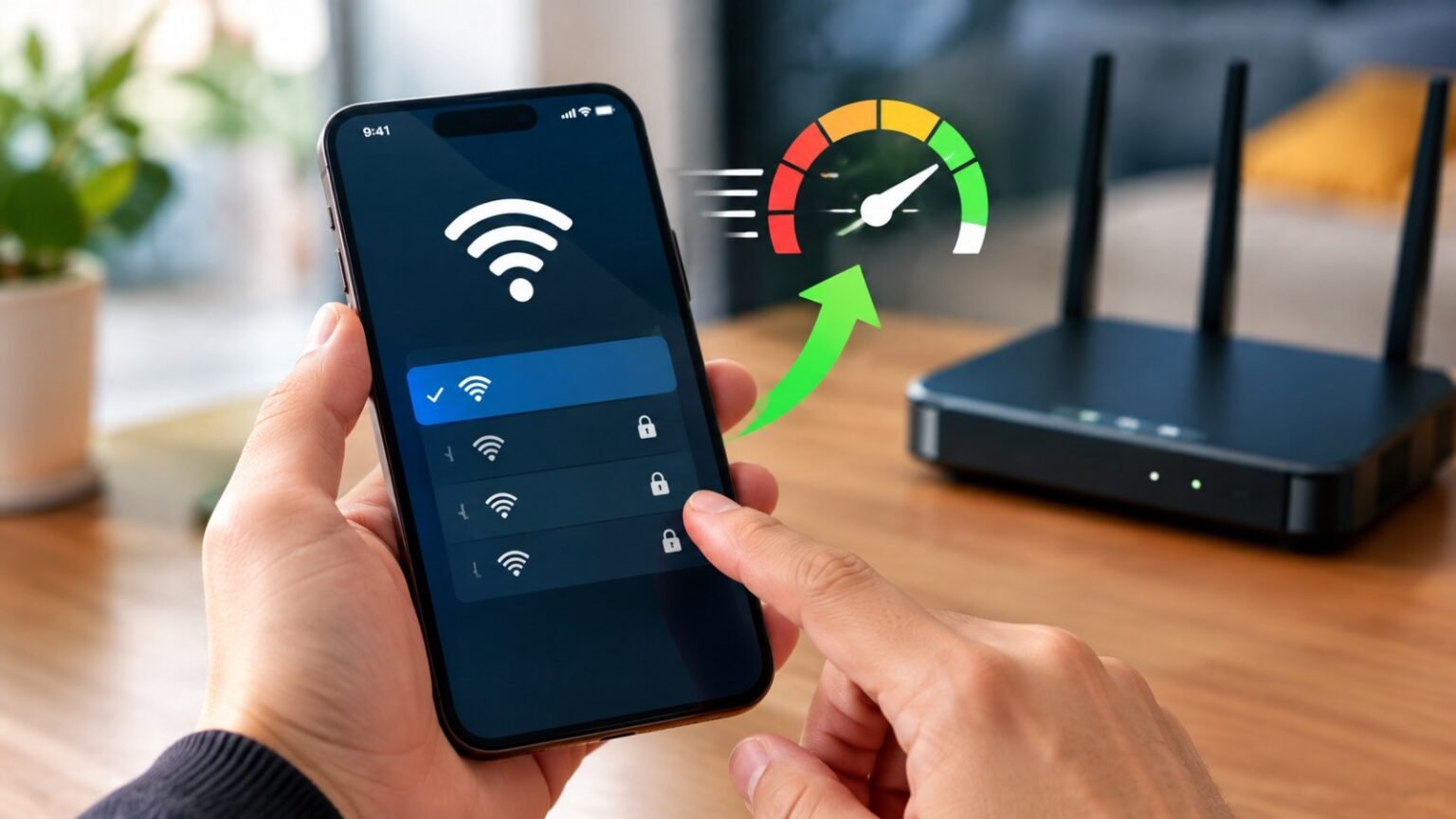
Most slow phone WiFi comes from one of three things: a weak signal, a crowded WiFi channel, or a glitch in your phone’s network settings. Turn on airplane mode for 10 seconds, forget and rejoin your network, then move to the 5 GHz band. That fixes the problem for most people in under two minutes.
If that did not work, keep reading. The fixes below go from fastest to most involved, so stop as soon as your speed is back.
First, Find Out Where the Problem Is
Before you change anything, spend 60 seconds on this test. It saves a lot of guessing.
- Open Speedtest or fast.com on your phone and note the download speed.
- Run the same test on a laptop or another phone on the same WiFi.
- Switch your phone to cellular data (Verizon, T-Mobile, AT&T, or whatever you use) and test again.
Here is how to read the results:
| What you see | Likely cause | Go to |
| Only your phone is slow | Phone settings or software | Fixes 1–7 |
| Every device is slow | Router or internet plan | Fixes 8–12 |
| WiFi is slow, cellular is fast | WiFi network or signal | Fixes 3, 4, 8 |
| Both WiFi and cellular are slow | Your phone or carrier area | Fixes 5–7 |
Fix 1: Toggle Airplane Mode
This is the oldest trick, and it still works. Airplane mode resets every radio in your phone at once.
- iPhone: Open Control Center and tap the airplane icon. Wait 10 seconds, then tap it again.
- Android: Swipe down from the top and tap Airplane mode. Wait 10 seconds, then turn it off.
Run your speed test again. If nothing changed, move on.
Fix 2: Restart Your Phone
A restart clears the memory and background processes that can drag down your connection. It sounds too simple, but a phone that has run for weeks without a restart often has stuck network processes.
Hold the power button, restart, and reconnect to WiFi.
Fix 3: Forget the Network and Rejoin
Sometimes your phone holds onto a bad connection profile. Forgetting the network makes it build a fresh one.
- iPhone: Settings > Wi-Fi > tap the (i) next to your network > Forget This Network.
- Android: Settings > Network & internet > Internet > tap the gear next to your network > Forget.
Rejoin and enter your password again. Make sure you have the password handy before you start.
Fix 4: Switch to the 5 GHz Band
Most modern routers broadcast two bands. They behave very differently.
| Band | Speed | Range | Best for |
| 2.4 GHz | Slower | Longer, goes through walls better | Far rooms, smart home gadgets |
| 5 GHz | Faster | Shorter | Streaming, video calls, gaming |
| 6 GHz (WiFi 6E and 7) | Fastest | Shortest | Same room as the router |
If your phone is stuck on 2.4 GHz, you will feel it. Neighbors’ routers, microwaves, and Bluetooth devices all crowd that band.
Look at your WiFi list. If you see two names, like “HomeWiFi” and “HomeWiFi-5G”, join the 5G one. If you only see one name, your router may be combining both bands. You can split them in the router app (see Fix 9).
Keep in mind: 5 GHz is faster but weaker through walls. If you are two rooms away from the router, 2.4 GHz may actually give you the better real-world speed.
Fix 5: Update Your Phone’s Software
Bugs in older iOS and Android versions can cause WiFi drops and slow speeds. Updates often include network fixes.
- iPhone: Settings > General > Software Update.
- Android: Settings > System > System update (the path varies by brand).
Connect to power first, since updates can take a while.
Fix 6: Turn Off Your VPN and Data Savers
A VPN adds an extra stop between you and the internet. Even a good one can cut your speed. Turn it off and test again. If speed jumps back, try a different VPN server closer to you, or a different VPN app.
Also check these two settings:
- iPhone Low Data Mode: Settings > Wi-Fi > (i) next to your network > turn off Low Data Mode.
- Android Data Saver: Settings > Network & internet > Data Saver > turn it off.
Fix 7: Change Your DNS Server
Your DNS works like a phone book for websites. A slow DNS makes pages feel slow to start, even when your raw speed is fine. Switching to a faster public DNS is a quick win. Google (8.8.8.8) and Cloudflare (1.1.1.1) are two popular, free choices.
- iPhone: Settings > Wi-Fi > (i) next to your network > Configure DNS > Manual > remove the old entries and add 1.1.1.1 and 1.0.0.1.
- Android: Settings > Network & internet > Private DNS > Private DNS provider hostname > enter one.one.one.one or dns.google.
Test again. You may notice pages and apps start loading faster even if your Speedtest number stays the same.
Fix 8: Move Closer and Clear the Path
WiFi signal drops fast with distance and obstacles. Concrete walls, metal appliances, mirrors, and fish tanks are the worst offenders.
Try these:
- Stand in the same room as the router and test again.
- If speed jumps, the problem is range, not the router’s speed.
- Move the router to a central, high spot, such as a shelf in the middle of your home.
- Keep it away from the microwave, cordless phone bases, and thick walls.
Fix 9: Restart and Update Your Router
Routers need a restart now and then, just like phones.
- Unplug the router and modem for 30 seconds.
- Plug the modem in first and wait for it to settle.
- Plug in the router and wait about two minutes.
While you are there, check the router app or admin page for a firmware update. Old firmware can slow speeds and leave security holes open. This is also where you can separate the 2.4 GHz and 5 GHz names if you want to pick the band yourself.
Fix 10: Pick a Less Crowded WiFi Channel
In apartments and dense neighborhoods, dozens of routers share the same few channels. When yours overlaps with your neighbors’, everyone slows down.
On Android, a free WiFi analyzer app can show you which channels are busy. On iPhone, Apple does not allow WiFi scanning in regular apps, so it is easier to check from the router’s admin page or a laptop.
Good starting points:
- 2.4 GHz: Use channel 1, 6, or 11. These do not overlap.
- 5 GHz: Most routers handle this well on “Auto,” but you can try a lower channel like 36 to 48.
Fix 11: Reset Network Settings
This is the big reset. It wipes saved WiFi passwords, Bluetooth pairings, and VPN settings, so only use it after the easier fixes.
- iPhone: Settings > General > Transfer or Reset iPhone > Reset > Reset Network Settings.
- Android: Settings > System > Reset options > Reset Wi-Fi, mobile & Bluetooth.
After the reset, reconnect to your WiFi and test again. Many stubborn problems end here.
Fix 12: Check Your Plan and Router Hardware
If every device in the house is slow, your phone is not the problem.
- Run a test straight from the modem. Plug a laptop in with an Ethernet cable. If it is also slow, call your internet provider.
- Check your plan. A 100 Mbps plan shared by a family streaming on four screens will feel slow, no matter how good your router is.
- Think about upgrading the router. If your router is more than five years old, a newer WiFi 6 or WiFi 6E model can make a real difference. Mesh systems are also good for larger homes, and you can compare them on Amazon or at Best Buy. Prices vary by size and brand, but expect to pay roughly $100 to $250 for a solid mesh kit.
Quick Reference: Which WiFi Standard Is Your Router?
| Standard | Also called | Bands | Real-world note |
| WiFi 4 | 802.11n | 2.4 / 5 GHz | Old; likely a bottleneck |
| WiFi 5 | 802.11ac | 5 GHz | Fine for basic use |
| WiFi 6 | 802.11ax | 2.4 / 5 GHz | Better in crowded homes |
| WiFi 6E | 802.11ax | 2.4 / 5 / 6 GHz | Extra band, less congestion |
| WiFi 7 | 802.11be | 2.4 / 5 / 6 GHz | Newest; needs a compatible phone |
Your phone also has to support the new standard to use it. A WiFi 7 router will still treat a WiFi 5 phone as a WiFi 5 device.
Our Verdict
Start with the free fixes: airplane mode, forget-and-rejoin, 5 GHz, and a better DNS. These cover most cases. If your phone is fine on other networks but slow at home, your router is the real culprit, and a restart, a better position, or a channel change will usually solve it without spending a cent.
Only buy new hardware after you have ruled out everything above. A $150 mesh kit will not fix a problem caused by a bad VPN or a stuck DNS.
FAQs
Why is my phone WiFi slow but other devices are fine?
The problem is usually on your phone: old software, a VPN, a bad saved network profile, or a data saver mode. Try Fixes 1 to 7.
Why is my WiFi slow on my phone but fast on my laptop?
Laptops often have stronger antennas and may sit on a faster band. Your phone might be on 2.4 GHz while your laptop uses 5 GHz. Try switching your phone to the 5 GHz network.
Should I use 2.4 GHz or 5 GHz on my phone?
Use 5 GHz when you are near the router for the best speed. Use 2.4 GHz when you are far away or behind walls, since it travels farther.
Does resetting network settings delete my data?
No. It only removes saved WiFi networks, Bluetooth pairings, and VPN or cellular settings. Your photos, apps, and files stay put.
How often should I restart my router?
Once a month is plenty for most homes. If you need to restart it every few days to keep speeds up, the router may be failing and could be due for an upgrade.
