

Does your crosshair fly past enemies? Or does it crawl while someone is already shooting you? In both cases, your sensitivity settings are a good place to look.
This guide shows you how to change sensitivity in PUBG Mobile, what each setting controls, which values to start with, and how to fine-tune them for your own phone. You don’t need any third-party app. Everything is built into the game.
Quick Answer: How to Change Sensitivity in PUBG Mobile
- Open PUBG Mobile and wait for the lobby to load.
- Open Settings (look for the gear icon or find it in the lobby menu).
- Tap the Sensitivity section. Some versions split it into tabs such as Lens (camera) and Gyroscope.
- Choose a preset, or select Customize.
- Move the sliders for the scope or view you want to change.
- Save if prompted, then test your changes in the Training Grounds.
Menu names and positions can shift between game updates, so your screen may look slightly different.
What Does Sensitivity Mean in PUBG Mobile?
Sensitivity controls how far your view moves when you swipe the screen or tilt your phone. A higher value means faster movement. A lower value means slower, more controlled movement.
Neither is automatically better. High sensitivity helps you turn quickly in close fights. Low sensitivity helps you make small corrections at long range. The goal is to find a balance for each scope.
The Main Types of Sensitivity
| Setting | What it controls | When you notice it |
| Camera (Lens) | View movement when you swipe without firing | Looking around, tracking targets, turning |
| ADS | Aim movement while you are firing | Controlling recoil during a spray |
| Gyroscope | Aim movement when you tilt your device | Fine corrections and recoil control |
| Free Look | The eye button view | Checking surroundings, driving, parachuting |
ADS stands for “aim down sights.” In PUBG Mobile, players mainly use the ADS sliders to tune how the aim responds while the fire button is active.
Step-by-Step: Changing Your Sensitivity Settings
Step 1: Open the Settings Menu
Launch the game and stay in the lobby. Open Settings. It’s better to make big changes here or in the Training Grounds, not in the middle of a ranked match.
Step 2: Go to Sensitivity
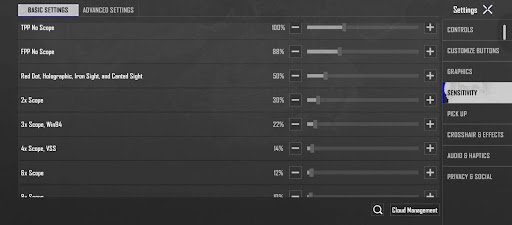
Select Sensitivity. You will see sliders grouped by view and scope, such as third-person (TPP) no scope, first-person (FPP) no scope, Red Dot, 2x, 3x, 4x, 6x, and 8x.
Step 3: Pick a Preset
Recent versions offer presets such as Low, Medium and High, along with options like Most Used, Season Expert and Customize. If you’re new, start with Medium. It gives you a neutral base to adjust from.
Step 4: Switch to Customize
Select Customize to edit individual values. Take a screenshot of your current numbers first. If the new setup feels worse, you can go back in a minute.
Step 5: Adjust Camera Sensitivity
Start with camera sensitivity because it affects how you move your view all the time. Swipe between two targets:
- If you keep swiping past the target, lower the value.
- If you keep stopping short, raise it.
Step 6: Adjust ADS Sensitivity
Next, equip a rifle and spray at a wall. While firing, drag down to control recoil.
- If the gun climbs even when you pull down comfortably, raise that scope’s ADS value.
- If your aim jerks or drops below the target, lower it.
Step 7: Set Up the Gyroscope (Optional)
Adjust the gyroscope last. The full setup is explained below.
Step 8: Test in the Training Grounds
Test every scope you changed. Use the same gun, attachments and distance each time, so you know the difference comes from your settings.
Starting Sensitivity Values for Beginners
The table below uses Medium preset camera values recorded on a Version 4.6.1 test account in October 2026, as published by ManaBuy. Your preset may differ after an update. Treat these as a starting point, not as the “best” settings.
| View or scope | Camera starting value |
| TPP No Scope | 100% |
| FPP No Scope | 88% |
| Red Dot / Holographic | 50% |
| 2x Scope | 30% |
| 3x Scope | 22% |
| 6x Scope | 12% |
| 8x Scope | 10% |
For 4x, leave your preset’s value in place and tune it from there.
Change one slider at a time, by about 3 to 5 points. If you change ten things at once, you won’t know which one helped.
How to Change Gyroscope Sensitivity in PUBG Mobile
The gyroscope lets you aim by tilting your phone. It takes practice, but many players like it for recoil control because your thumbs stay free for movement and firing.
Gyroscope Modes
| Mode | How it works | Best for |
| Off | Tilting does nothing | Players who prefer touch only |
| Scope On | Gyro works only when you’re scoped in | Beginners learning gyro |
| Always On | Gyro works with or without a scope | Players comfortable with tilt aiming |
How to Turn It On
- Open Settings.
- Find the Gyroscope option. Depending on your version, it may sit in the sensitivity area or in the basic settings.
- Choose Scope On or Always On.
- Adjust the gyroscope sliders for each scope.
- Tilt your phone gently in the Training Grounds to test it.
If you’re new to gyro, choose Scope On first. Keep the preset values for a few sessions, then raise them if you have to tilt your phone too far. Lower them if your aim shakes.
Your phone needs a working gyroscope sensor. Some budget phones don’t have one or have a weak one. Check your model’s spec sheet if the feature doesn’t respond. You can look it up on our phone specifications pages.
How to Set Sensitivity for Individual Weapons
PUBG Mobile also supports weapon-specific sensitivity. This lets one gun use its own values while your other weapons keep the general setup.
Look for the weapon-specific sensitivity option in your settings or weapon customization screens. The exact location can vary by version.
Use this only after your general settings feel comfortable. It’s helpful when one rifle, such as the M762, feels much harder to control than the others. Before changing anything, check your attachments and stance, because they also affect recoil.
How to Import a PUBG Mobile Sensitivity Code
A sensitivity code lets you copy another player’s setup without typing each number.
- Open Settings and go to Sensitivity.
- Open the cloud or layout management option.
- Find Search Method or the code search box.
- Paste the code and tap Search.
- Tap Preview to check the values.
- Apply it only if you’re happy with what you see.
How to Share Your Own Code
- Open the sensitivity cloud or layout management screen.
- Upload your current settings.
- Tap Share next to the saved setup.
- Copy the code and keep it somewhere safe.
Sensitivity codes and control layout codes are not always the same thing. Check which one you’re copying.
A pro player’s code may feel strange on your device. Screen size, frame rate, grip and finger style all change how a setting feels. Use a code as a base and adjust from there.
Fix Common Aiming Problems
| Problem | What to try |
| You swipe past enemies | Lower camera sensitivity for that view |
| You can’t turn fast enough | Raise no-scope camera sensitivity slightly |
| Gun climbs during a spray | Raise ADS or gyro sensitivity for that scope |
| Aim shakes with gyro on | Lower the gyro value for that scope |
| Long-range aim feels jumpy | Lower 6x and 8x values |
| One gun feels worse than the rest | Check attachments, then try weapon-specific settings |
| Aim feels inconsistent | Check for lag, overheating or frame drops |
Tips to Find Your Best Sensitivity
Match Your Grip
Two-thumb players often have to cover more distance with each swipe, so they may prefer slightly faster camera values. Three- and four-finger players may want something different. Test it yourself instead of assuming.
Consider Your Screen Size
A tablet gives your finger more room to travel than a small phone. The same percentage can feel different on each. Re-test your settings when you change devices.
Keep Your Frame Rate Stable
Sensitivity can’t fix lag. If your game stutters, lower your graphics quality and choose a frame rate your phone can hold steadily. Close background apps and avoid playing while the phone is very hot.
Give New Settings Time
Don’t judge a setup after one bad match. Your hands need a few sessions to adjust. Constantly switching settings makes it harder to build muscle memory.
A 10-Minute Practice Routine
- 2 minutes: Track moving targets without firing.
- 3 minutes: Practice Red Dot and 2x sprays.
- 3 minutes: Practice 3x and 4x sprays.
- 2 minutes: Test long-range scopes, then change one value if needed.
FAQs
What is the best sensitivity for PUBG Mobile?
There isn’t one best setting for everyone. Your device, grip, frame rate and play style all matter. Start with the Medium preset and adjust each scope in small steps.
Can sensitivity settings remove recoil completely?
No. Good settings make recoil easier to control, but they don’t remove it. Be careful with “zero recoil code” claims. You still need practice and suitable attachments.
Should I use the gyroscope?
Try it if you want extra control. Start with Scope On. If tilting feels uncomfortable after several sessions, turning it off is perfectly fine.
How do I reset my sensitivity to default?
Open the sensitivity settings and select a standard preset, or use the reset option if your version shows one. Screenshot custom values first.
How often should I change my sensitivity?
Only when something clearly feels wrong, when you switch devices, or when an update changes how your aim feels.
Final Thoughts
Now you know how to change sensitivity in PUBG Mobile. Open the settings, start with a preset, tune camera, ADS, and gyroscope one at a time, and test everything in the Training Grounds. Small changes and regular practice will teach you more than copying a new code every week.
