
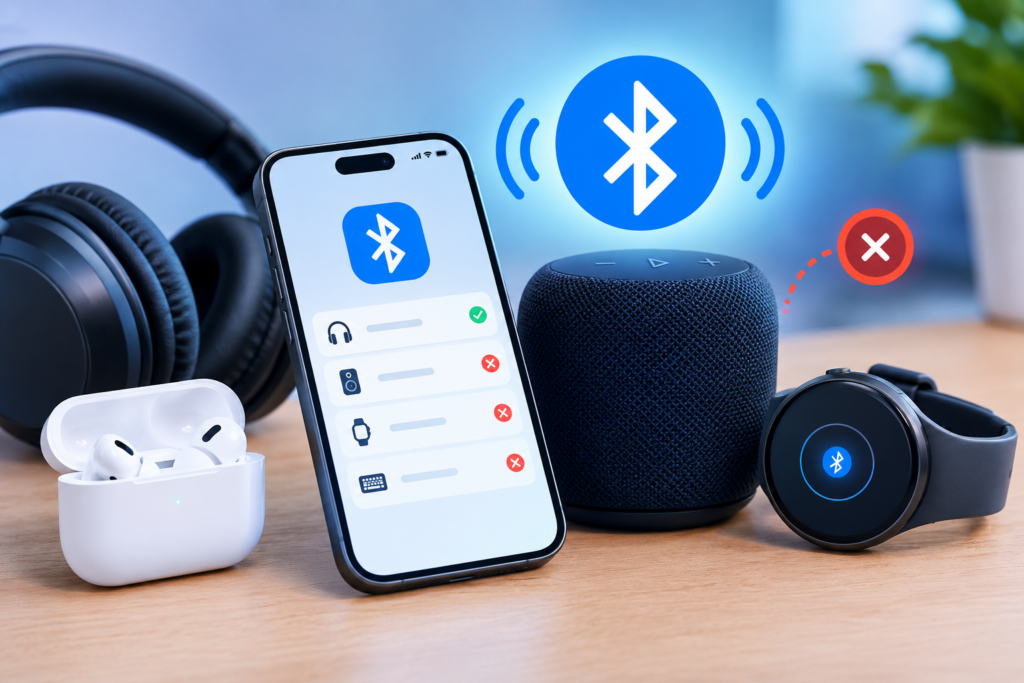
You’re ready to hit play, but your headphones just won’t connect. Annoying, right? The good news is that Bluetooth pairing problems are rarely serious. Most of the time it’s a small glitch, a setting, or a leftover connection getting in the way.
This guide walks you through the fixes in order, from 10-second tricks to deeper resets, so you can get connected without losing your afternoon.
Common Signs of a Bluetooth Pairing Problem
Pairing trouble usually shows up in one of three ways:
- The device doesn’t appear in the list. Your phone keeps scanning, but your speaker is nowhere to be found.
- “Pairing failed” or “Couldn’t connect” errors. The device shows up, but the connection falls apart.
- Connecting, then dropping right away. It pairs for a moment, then disconnects.
Knowing which one you’re dealing with helps you pick the right fix.
Why Bluetooth Won’t Pair: The Usual Suspects
- Distance and interference. Bluetooth works best within about 30 feet, and walls or other wireless signals can weaken it.
- Device not in pairing mode. Many accessories only broadcast for a short time after you activate pairing.
- Software glitches. Temporary bugs on your phone, computer, or accessory can block the connection.
- Old pairing data. If you’ve connected before, outdated saved info can confuse things.
Quick Fixes to Try First
Start here. These solve a surprising number of problems.
- Toggle Bluetooth off and on. Turn it off, wait a few seconds, and turn it back on.
- Restart both devices. A reboot clears temporary glitches on both sides.
- Turn Airplane Mode on and off. This resets all your wireless radios at once.
- Move closer. Put the devices within a few feet of each other with nothing in between.
Check the Basics
Before digging into settings, rule out the simple stuff:
- Is the accessory charged? A low battery can cause strange connection behavior.
- Is it in pairing mode? Usually that means holding the power or Bluetooth button until a light flashes. Every brand does it a little differently, so check your manual.
- Is it already connected to another device? This one gets people all the time. Your earbuds might be happily connected to your tablet, which means they won’t show up on your phone. Turn Bluetooth off on the other device and try again.
Forget the Device and Re-Pair It
If you’ve paired before, deleting the old connection and starting fresh often does the trick.
- Android: Settings > Connected devices (or Connections) > Bluetooth, tap the gear icon next to the device, and choose Forget or Unpair.
- iPhone: Settings > Bluetooth, tap the i icon next to the device, and select Forget This Device.
- Windows: Settings > Bluetooth & devices, click the three dots next to the device, and choose Remove device.
- Mac: System Settings > Bluetooth, click the i next to the device, and select Forget This Device.
Then put the accessory in pairing mode and connect again.
Reset Your Bluetooth Accessory
Sometimes the accessory itself is holding onto bad data. A factory reset wipes it clean. Steps vary by brand, but here are the common patterns:
- Headphones and earbuds: Hold the power button (or a case button) for 10 to 15 seconds until the light flashes. Some earbuds need to be in the charging case first.
- Speakers: Often you hold the power and volume buttons together for several seconds.
- Smartwatches: Look for a reset or “unpair” option in the watch settings or companion app.
Not sure? Search your model name plus “factory reset.” You’ll need to pair it as a brand-new device afterward.
Update Your Software and Firmware
Outdated software is a sneaky cause of Bluetooth bugs. Check for system updates on your phone or computer, since manufacturers regularly fix Bluetooth issues in these releases. Many headphones, earbuds, and smartwatches also get firmware updates through a companion app, so open yours and see if one is waiting. It takes a few minutes and can fix problems that no amount of re-pairing will touch.
Clear Bluetooth Cache and Reset Network Settings
If the basics didn’t work, it’s time for a deeper clean.
Android: Go to Settings > Apps, show system apps, find Bluetooth, tap Storage, and choose Clear cache. Restart your phone afterward. Menu names vary a bit by brand.
iPhone: Go to Settings > General > Transfer or Reset iPhone > Reset > Reset Network Settings. This also clears saved Wi-Fi networks and paired Bluetooth devices, so you’ll need to reconnect those.
It’s a bit of a hassle, but it fixes stubborn problems that simpler steps can’t.
Fix Interference Problems
Bluetooth shares airspace with a lot of other stuff. Wi-Fi routers, microwaves, and other wireless gadgets often use the same 2.4 GHz band, so try pairing in a different spot if you’re next to one. Also, if your smartwatch, earbuds, keyboard, and speaker are all active at once, things can get crowded. Disconnect what you’re not using.
Fixing Pairing Problems in Specific Situations
Car Bluetooth. Delete the car from your phone’s list and delete your phone from the car’s system, then pair again with the car parked. Some cars limit how many phones they can save, so remove old ones.
Wireless earbuds (one not working). Put both earbuds in the case, forget them on your phone, and reset them. Then take both out together so they sync with each other first.
Keyboards and mice. Replace or recharge the batteries, then make sure the device is in pairing mode. Many have a small switch or button on the bottom for this.
Smartwatches and fitness trackers. These usually pair through their own companion app rather than your phone’s Bluetooth menu. Follow the app’s setup flow and make sure it has permission to use Bluetooth and location.
When Nothing Works: Is It a Hardware Problem?
If you’ve tried everything and still can’t connect, the problem might be physical. Warning signs include:
- The accessory won’t pair with any device.
- Your phone or computer won’t connect to any Bluetooth device.
- The accessory has been dropped, water-damaged, or the battery dies almost instantly.
To narrow it down, test your accessory on a different device, and test a different accessory on yours. If one fails everywhere, the accessory is likely the culprit. If everything fails on one device, that device’s Bluetooth chip may be the issue. Either way, contact the manufacturer. If it’s under warranty, you may get a free repair or replacement.
Tips to Avoid Bluetooth Pairing Problems in the Future
- Keep your phone, computer, and accessories updated.
- Remove old devices you no longer use from your Bluetooth list.
- Keep accessories charged.
- Disconnect from one device before pairing to another.
- Avoid pairing in crowded wireless spots.
Frequently Asked Questions
Why does my phone find the device but won’t connect?
Usually it’s a stale pairing record, or the accessory is connected to something else. Forget the device, reset the accessory, and try again.
Why does Bluetooth keep disconnecting?
Common causes are low battery, distance, interference, and outdated software. Update everything and keep the devices close.
Can too many paired devices cause problems?
Yes. Some devices limit saved connections, and a long list of old pairings can cause confusion. Clear out the ones you don’t use.
Conclusion: Quick Recap and Next Steps
Most Bluetooth pairing problems come down to something small: a glitch, a forgotten connection, or a device that wasn’t in pairing mode. Start with the quick fixes, forget and re-pair the device, then work through resets and updates. If nothing works, check for a hardware issue and contact support.
Follow the steps in order, and you’ll be back to your music, calls, and wireless freedom in no time.
