
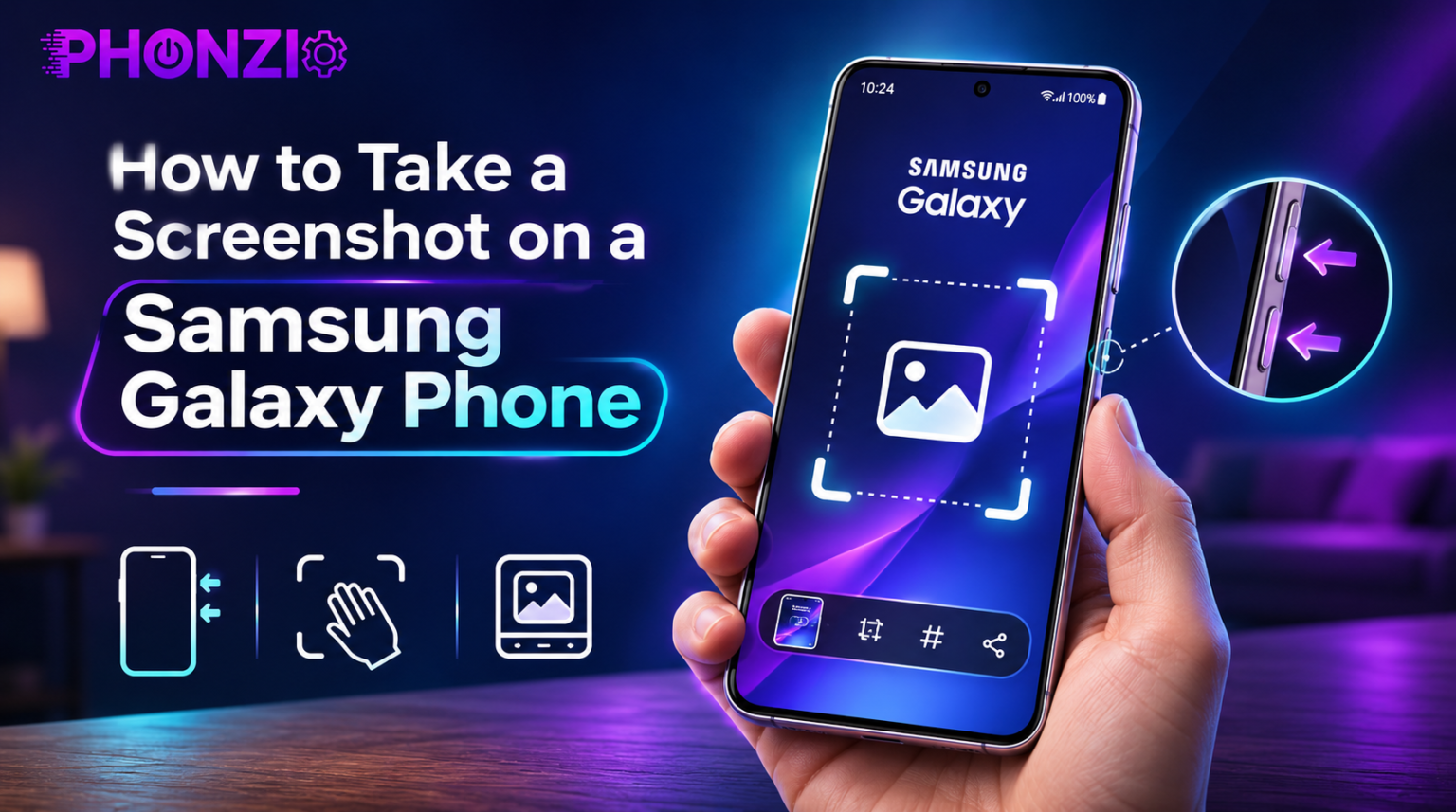

Taking a screenshot on a Samsung Galaxy phone is simple once you know the right method. Whether you want to save a WhatsApp conversation, capture an important message, keep a receipt, or share something interesting on your screen, Samsung provides several ways to do it.
You can take a screenshot using physical buttons, palm swipe gestures, or the S Pen on supported Galaxy devices. You can also capture an entire webpage using the scrolling screenshot feature.
In this guide, we explain how to take a screenshot on Samsung Galaxy phones, where to find your screenshots, and how to fix common screenshot problems.
1. Take a Screenshot Using the Power and Volume Buttons
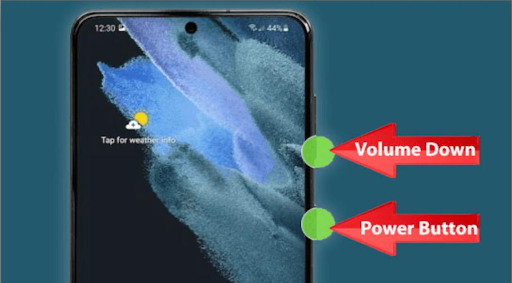
The easiest way to capture your screen is by using your phone’s physical buttons. This method works on most modern Samsung Galaxy smartphones.
Follow these steps:
- Open the screen you want to capture.
- Press the Side (Power) button and Volume Down button at the same time.
- Release both buttons quickly.
- Your screen will flash briefly, confirming that the screenshot has been captured.
- A screenshot toolbar may appear at the bottom of your screen.
Important: Do not hold the buttons for too long. Holding them can open the power menu instead of capturing a screenshot.
This method works on many Galaxy S, Galaxy A, and Galaxy Z models, although button placement can vary.
2. Take a Screenshot Using Palm Swipe
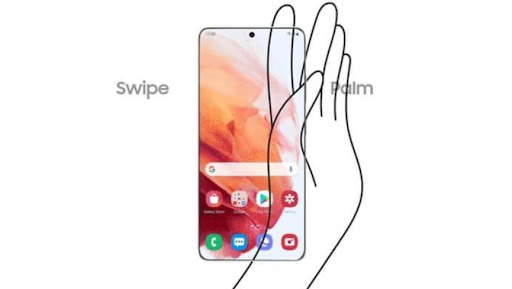
Samsung also offers a palm swipe gesture that lets you capture a screenshot without pressing physical buttons.
However, this feature is not available on every Galaxy model.
To enable it:
- Open Settings.
- Tap Advanced features.
- Select Motions and gestures.
- Find Palm swipe to capture.
- Turn the feature on.
After enabling it:
- Open the screen you want to capture.
- Place the edge of your hand against one side of the display.
- Swipe your hand across the screen to the opposite side.
- Your phone will capture a screenshot.
Make sure your palm touches the screen while swiping. If the gesture does not work, check whether your Galaxy model supports it.
3. Take a Scrolling Screenshot on Samsung Galaxy
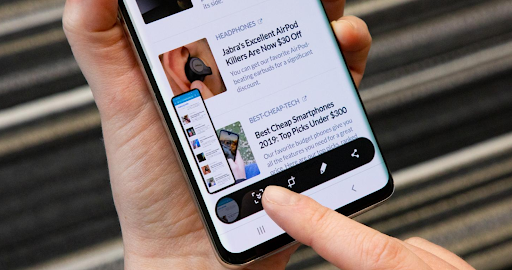
A normal screenshot captures only the content currently visible on your display. But what if you want to save an entire webpage, long conversation, or document?
Samsung’s Scroll Capture feature can help.
Follow these steps:
- Open a webpage or conversation that supports scrolling.
- Take a screenshot using the Power and Volume Down buttons.
- When the screenshot toolbar appears, tap the Scroll Capture icon (downward arrows).
- Continue tapping the icon to capture more content.
- Stop when you have captured everything you need.
Your phone combines the captured sections into one longer screenshot.
The Scroll Capture option appears only when compatible content is available.
4. Take a Screenshot Using the S Pen
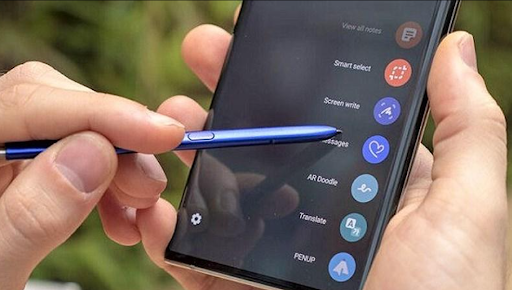
If you own a compatible Samsung Galaxy device with an S Pen, you can use it to capture specific parts of your screen.
One useful option is Smart Select.
- Remove the S Pen from your compatible Galaxy phone.
- Open the Air Command menu.
- Select Smart Select.
- Choose a selection shape, such as a rectangle.
- Use the S Pen to select the area you want to capture.
- Save the captured image.
This method is particularly useful when you do not want to capture the entire display.
5. Where Are Screenshots Saved on Samsung Galaxy?
After capturing a screenshot, you can find it in your phone’s Gallery app.
Follow these steps:
- Open the Gallery app.
- Tap Albums.
- Find the Screenshots folder.
- Open it to view your captured images.
You can also access screenshots through the My Files app:
- Open My Files.
- Tap Images.
- Open the Screenshots folder.
From there, you can share, edit, move, or delete screenshots.
6. How to Fix Samsung Galaxy Screenshot Not Working
Sometimes your Samsung phone may not capture screenshots. Here are some common reasons and solutions.
Check the button combination: Press the Side and Volume Down buttons together and release them quickly.
Check available storage: If your phone has very little free storage, delete unnecessary files or move important photos to another storage location.
Restart your phone: A simple restart can resolve temporary software problems.
Check app restrictions: Some banking, streaming, and other protected apps prevent screenshots for security or privacy reasons. You cannot always override these restrictions.
Check screenshot settings: If the screenshot toolbar is missing, open Settings and look for the screenshot toolbar option under Advanced features.
If the problem continues, check for available software updates or contact Samsung Support.
Samsung+1
7. Frequently Asked Questions
- What is the shortcut for taking a screenshot on Samsung Galaxy?
Press the Side (Power) button and Volume Down button simultaneously, then release them quickly. Your screenshot will be saved automatically.
- Can I take a screenshot without pressing buttons?
Yes. If your phone supports it, enable Palm swipe to capture under Settings, Advanced features, and Motions and gestures.
- How do I take a full-page screenshot on Samsung?
Take a normal screenshot and tap the Scroll Capture icon in the screenshot toolbar. Continue tapping until you capture the required content.
- Why is my Samsung phone not allowing screenshots?
Some apps block screenshots for security or privacy reasons. Other possible causes include incorrect button timing, temporary software issues, or insufficient storage.
- Can I edit a screenshot after capturing it?
Yes. Open the screenshot toolbar and use the editing options to crop, draw, or share your image. You can also edit it later through Gallery.
Final Thoughts
Taking a screenshot on a Samsung Galaxy phone is easy, whether you use physical buttons, palm swipe gestures, Scroll Capture, or an S Pen on supported devices.
For most users, the Power and Volume Down button combination is the quickest option. If you regularly capture long webpages or conversations, Scroll Capture is particularly useful.
Choose the method that works best for your Galaxy model and save important information whenever you need it.
