
Is your Galaxy S24 lagging, freezing, or acting strangely? In most cases, a restart is the fastest fix. This guide shows you 3 ways to restart your Samsung S24, including what to do when the screen won’t respond. The steps work for the Galaxy S24, S24+, and S24 Ultra.
Here’s a quick look at all three methods before we go step by step:
| Method | How it works | Best for | Time needed |
| 1. Side key + Volume Down | Hold both buttons, then tap Restart | Everyday restarts | About 5 seconds |
| 2. Quick Settings panel | Swipe down, tap the Power icon, tap Restart | Damaged or hard-to-press buttons | About 5 seconds |
| 3. Force restart | Hold Volume Down + Side key for 7 seconds | Frozen or black screen | About 10 seconds |
When Should You Restart Your Samsung S24?
A restart clears temporary data and gives apps and system processes a fresh start. It’s worth trying when:
- The phone feels slow or laggy
- Apps crash or freeze repeatedly
- Wi-Fi, Bluetooth, or mobile data stops working properly
- The battery drains faster than normal
- You’ve just installed a software update
Method 1: Restart Using the Side Key and Volume Down Button
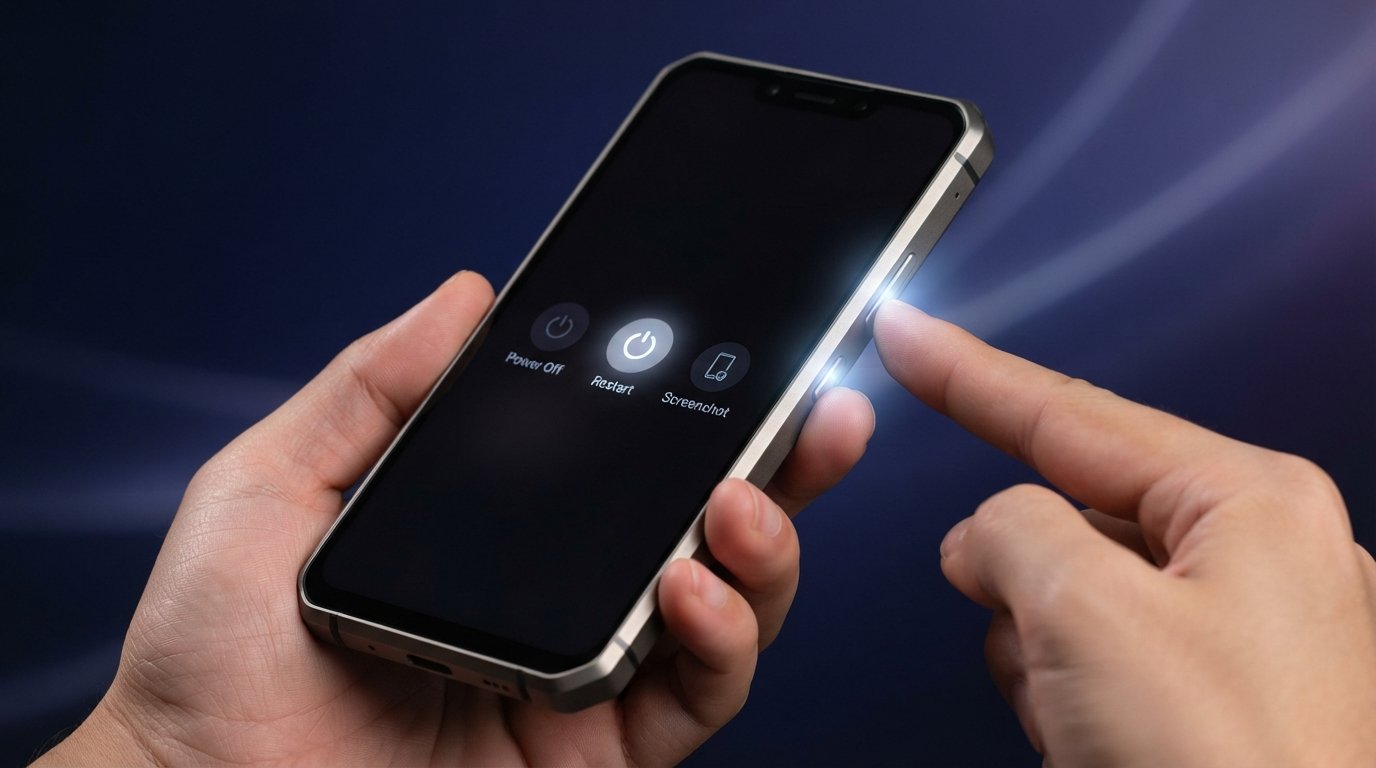
This is the standard way to restart a Galaxy S24. Samsung calls the power button the Side key.
- Press and hold the Side key and the Volume Down button simultaneously.
- When the power menu appears, tap Restart.
- Confirm if prompted, then wait for the phone to power back on.
Why doesn’t holding just the Side key open the power menu?
By default, a long press on the Side key launches Bixby or Google Assistant on the S24. Adding Volume Down is what opens the power menu.
Want the Side key to open the power menu on its own?
- Open Settings.
- Tap Advanced features, then Side key.
- Under Press and hold, choose Power off menu.
Method 2: Restart from the Quick Settings Panel
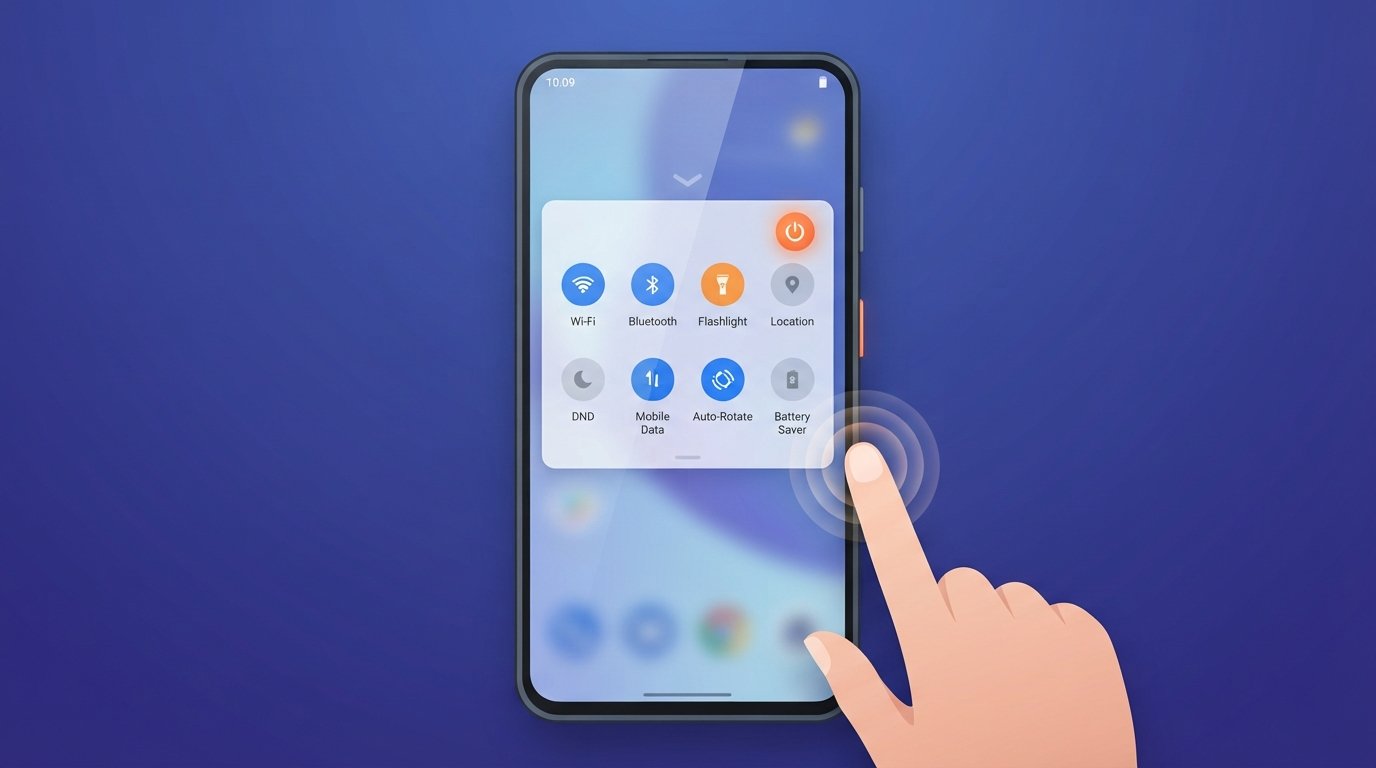
Use this method if your physical buttons are damaged, stiff, or hard to press.
- Swipe down from the top of the screen, twice if needed, to fully open Quick Settings.
- Tap the Power icon in the top-right corner.
- Tap Restart.
Can’t see the Power icon? Make sure the panel is fully expanded. If it’s still missing, use Method 1 instead.
Method 3: Force Restart a Frozen Samsung S24

A force restart is for times when the screen is black, touch isn’t responding, or the phone is stuck on a frozen app.
- Press and hold the Volume Down button and the Side key together.
- Keep holding for about 7 seconds, until the screen goes dark and the Samsung logo appears.
- Let go of both buttons and wait for the phone to boot.
Is it safe? Yes. A force restart doesn’t delete your photos, apps, or files. Still, save it for situations where a normal restart isn’t possible.
Didn’t work? Connect the phone to a charger for at least 30 minutes and try again. A fully drained battery can make a phone look frozen.
Bonus: Other Ways to Restart Your Galaxy S24
Use a voice command. Ask Bixby to restart your phone. Depending on your settings, you may need to confirm on screen.
Schedule automatic restarts. Go to Settings > Battery and device care > Auto optimization > Auto restart, then pick a time, such as overnight. Menu names can vary slightly between One UI versions.
Restart in Safe Mode. Safe Mode temporarily turns off downloaded apps, so you can check whether one of them is causing problems. To enter it, press and hold the Side key and Volume Down, then touch and hold Power off until the Safe Mode option appears, and tap it. To leave Safe Mode, restart the phone normally.
Restart vs. Force Restart vs. Factory Reset
| Action | What it does | When to use it | Data lost? |
| Restart | Turns the phone off and on normally | Minor lag, glitches, after updates | No |
| Force restart | Forces a reboot when the phone is unresponsive | Frozen or black screen | No |
| Factory reset | Erases everything and restores default settings | Last resort for serious software problems | Yes |
Always try a restart or force restart before thinking about a factory reset.
What to Do If Your Samsung S24 Won’t Restart
Work through these steps in order:
- Charge the phone for at least 30 minutes, then try again.
- Check the buttons. A stuck or damaged Side key or Volume Down button can stop the button combos from working. If the screen still responds, use Method 2.
- Try Recovery Mode. You can reboot from there, but the steps differ by setup, so check Samsung’s current instructions for your One UI version.
- Update the software once the phone is working, since updates often fix bugs.
- Contact Samsung Support or visit a service center. It may be a hardware problem.
Tips to Keep Your Samsung S24 Running Smoothly
- Restart once a week to keep memory clear and prevent slowdowns.
- Keep One UI and your apps updated for fixes and security patches.
- Free up storage. Aim to keep roughly 10-15% of your storage free.
- Deal with problem apps. If one crashes often, update it or uninstall it.
Frequently Asked Questions
How do I restart my Samsung S24 without the power button?
Swipe down to open Quick Settings, tap the Power icon, then tap Restart. You can also ask Bixby to do it.
How do I force restart a Samsung S24?
Hold Volume Down and the Side key together for about 7 seconds, until the Samsung logo appears.
Does restarting delete my data?
No. Neither a normal restart nor a force restart erases your files, photos, or apps. Only a factory reset does.
How often should I restart my Galaxy S24?
Once a week is a good habit. Restart sooner if the phone lags or apps misbehave.
Why does holding the Side key open Bixby instead of the power menu?
That’s the default setting on Galaxy phones. You can change it under Settings > Advanced features > Side key.
Are the steps the same for the S24+ and S24 Ultra?
Yes. All three models use the same button combinations and menus.
Conclusion
Restarting your Galaxy S24 is quick and safe. Use Side key + Volume Down for a normal restart, the Quick Settings Power icon when the buttons are hard to use, and a force restart when the phone is frozen. If none of these work, charge the phone and contact Samsung Support.
Found this guide helpful? Leave a comment or check out our other Samsung guides.
