
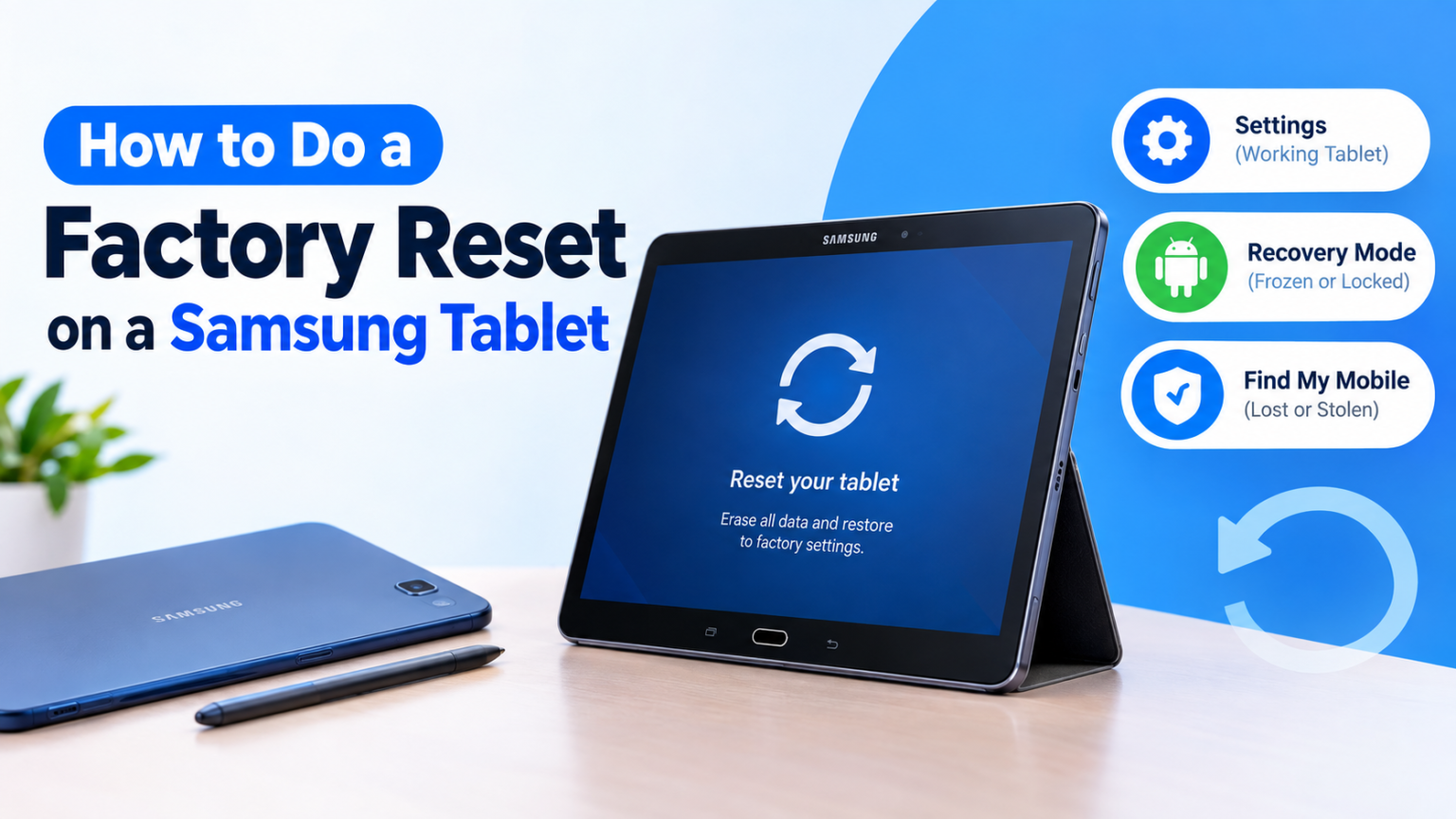
Samsung tablet slowing down, freezing, or just not behaving? Or maybe you’re selling it or passing it to a family member. A factory reset wipes everything and takes the tablet back to the way it was when you first unboxed it. It’s easy to do, but it’s permanent, so a little prep goes a long way. This guide covers every method, including what to do when you’re locked out.
Quick Answer: How to Factory Reset a Samsung Tablet
| Method | Best for | Quick steps |
| Settings | Tablet works normally | Settings > General management > Reset > Factory data reset > Reset > Delete all |
| Recovery mode | Frozen, locked, or stuck on the logo | Power off, hold Volume Up + Power (add Home on older tablets), choose Wipe data/factory reset |
| Find My Mobile | Lost or stolen tablet | Sign in to Samsung’s Find My Mobile service, select your tablet, tap Erase data |
In a hurry? If your tablet works, just open Settings, tap General management > Reset > Factory data reset, then tap Reset and Delete all. Done.
Everything gets erased, so back up first. Details are in the prep checklist below. If you can’t get into Settings, jump to the recovery mode section.
Should You Factory Reset? Try These Fixes First
A reset is a great fix, but it’s not always the first one you should try. If the tablet is just sluggish or glitchy, give these a shot:
- Restart the tablet
- Update the software (Settings > Software update)
- Clear the cache or uninstall the app that’s causing trouble
- Boot into Safe Mode to check whether a downloaded app is the culprit
If none of that helps, or you’re selling the tablet or can’t get in at all, a reset is the right call.
Factory Reset vs. Reset All Settings vs. Network Reset
These are easy to mix up, and only one of them erases your stuff.
| Option | Erases your apps and data? | What it does |
| Factory data reset | Yes, everything | Returns the tablet to a brand-new state |
| Reset all settings | No | Resets system settings but keeps accounts, apps, and files |
| Reset Wi-Fi and Bluetooth | No | Clears saved networks and paired devices |
If you only have a connection problem, try the lighter options first.
Before You Reset: Prep Checklist
Once you reset, your data is gone for good. Spend five minutes on this:
- Back up your data. Use Samsung Cloud, Google backup, or Smart Switch to copy files to a computer or another device.
- Save your photos and chats. Check that Google Photos has synced, and back up WhatsApp separately.
- Remove your accounts. Sign out of your Samsung and Google accounts. This helps you avoid getting stuck on the FRP lock screen later.
- Decrypt your SD card if you encrypted it. Otherwise, the tablet won’t be able to read it afterward.
- Charge to at least 50% so the tablet doesn’t die mid-reset.
- Connect to Wi-Fi. Samsung needs a connection to sign you out of your account.
Method 1: Factory Reset From Settings
This is the easiest way, and it works when your tablet runs normally.
- Open Settings and tap General management.
- Tap Reset, then Factory data reset.
- Read the screen, which lists the accounts that will be removed.
- Tap Reset, then Delete all.
- Enter your lock screen credentials and your Samsung account password if you have one added.
The tablet restarts and shows the setup screen. Menu names can differ slightly between One UI versions, but “General management” and “Reset” are almost always where you’ll find it.
Method 2: Factory Reset Using Recovery Mode
Use this when the tablet is frozen, stuck on the logo, or locked and you can’t reach Settings.
- Power off the tablet completely.
- Hold the right buttons. On most newer tablets, hold Volume Up + Power. On older tablets with a Home button, hold Volume Up + Home + Power.
- Let go when the Samsung logo shows up. The Android Recovery menu appears.
- Use the volume buttons to move up and down and the Power button to select.
- Choose Wipe data/factory reset, then confirm.
- When it finishes, select Reboot system now.
Some newer models need you to plug the tablet into a charger or computer while holding the buttons. If the combo doesn’t work at first, try that. Button combos also vary a bit between models, so if yours doesn’t respond, check Samsung’s support page for your exact tablet.
Method 3: Factory Reset Remotely With Find My Mobile
If your tablet is lost or stolen, you can wipe it from another device. This feature is now called Samsung Find on newer devices.
- Go to Samsung’s Find service on a computer or phone and sign in with your Samsung account.
- Select your tablet from the device list.
- Choose Erase data and confirm.
For this to work, the tablet needs to be on, connected to the internet, and signed into your Samsung account with remote controls enabled. If it’s offline, the wipe will happen as soon as it reconnects.
Which Method Should You Use?
| Method | Best for | What you need |
| Settings | Normal, working tablets | Access to the tablet |
| Recovery mode | Frozen or locked tablets | Physical buttons |
| Find My Mobile | Lost or stolen tablets | Samsung account and internet on the tablet |
Forgot Your PIN, Pattern, or Password?
You still have options. Recovery mode lets you wipe the tablet without entering your lock screen code, and Find My Mobile can do it remotely. The catch is that you lose everything on the tablet, and you’ll likely hit FRP afterward (more on that below), so keep your Google account details handy.
What Happens After the Reset
The tablet reboots to the welcome screen, and the whole process usually takes just a few minutes. Pick your language, connect to Wi-Fi, and sign in with your Google and Samsung accounts. When asked, restore from your backup and let your apps reinstall. Expect it to take a while if you have a lot of apps and photos.
Stuck on the Google Account Screen? FRP Explained
Factory Reset Protection (FRP) is a security feature. After a reset, the tablet asks for the Google account that was previously on it, so a thief can’t just wipe it and use it.
The right way past it is to enter the correct Google email and password. If you forgot them, recover your account through Google’s account recovery page. Sometimes Google restricts a device for about a day after a password change, so you might have to wait. Bought it secondhand? Ask the seller to remove their account. If all else fails, Samsung support can help if you have proof of purchase.
Selling or Giving Away Your Tablet
Do these before you hand it over:
- Sign out of your Google and Samsung accounts first
- Remove the SIM card (if any) and the SD card
- Run the factory reset
- Don’t set it up again afterward. Leave it on the welcome screen so the new owner can do it.
Special Cases
Kids’ tablets: If it’s managed with Family Link or parental controls, remove those restrictions from the parent account before you reset. Otherwise, the controls may stick around after setup.
Work or school tablets: These are often locked by an admin. A reset might be blocked or the device might re-enroll right after. Ask your IT team before wiping one.
Troubleshooting Common Problems
Reset stuck on the logo or won’t finish: Make sure it’s charged, wait several minutes, then force restart with Power + Volume Down held for about 10 seconds. If it still won’t move, try Recovery mode.
Tablet won’t turn on after reset: Plug it in for 30 minutes, then try again. If there’s no sign of life, it may be a hardware issue and worth a trip to a Samsung service center.
Factory reset option missing or greyed out: This can happen on admin-managed tablets. Use Recovery mode, or contact whoever manages the device.
FAQs
Does a factory reset delete everything?
Yes, all apps, accounts, and data on the internal storage. Your SD card isn’t wiped unless you format it.
Does it remove viruses?
Usually, yes. Just don’t restore a backup that may include the infected app.
Can I undo a factory reset?
No. You can only restore your data if you made a backup first.
Does it change my Android version?
No. The tablet keeps its current software version.
Will it unlock a locked tablet?
It clears the lock screen, but FRP will still ask for your Google account.
Conclusion
Factory resetting a Samsung tablet is simple once you know which method fits your situation: Settings for a normal tablet, Recovery mode for a frozen or locked one, and Find My Mobile for a lost one. Back up first, remove your accounts, and keep your Google login handy. And if you want to avoid scrambling next time, back up your tablet regularly.
