
Your phone battery can disappear surprisingly fast even when you aren’t spending hours gaming, streaming video, or using the camera. The problem is often hidden in the settings and background features that continue working when your screen is off.
Apps can refresh content, location services can operate in the background, displays can wake unnecessarily, and wireless connections can keep searching for a signal. Individually, these features may not seem like a big deal. Together, however, they can contribute to noticeably faster battery drain.
The good news is that you don’t have to turn your smartphone into a basic phone to improve battery life. A few carefully chosen changes can reduce unnecessary power consumption while keeping the features you actually use.
The One Setting You Should Check First
Background App Refresh or Background Activity is one of the most overlooked battery drainers. Apps can continue checking for updates, syncing data, refreshing feeds, and sending notifications even when you’re not actively using them.
Why It Drains Battery
Social media, shopping, news, and travel apps are common culprits because they frequently refresh content in the background. If many apps have unrestricted background access, the battery drain can add up quickly.
How to Fix It
On iPhone:
- Go to Settings > General > Background App Refresh.
- Turn it off for apps that don’t need constant updates.
On Android:
- Go to Settings > Apps.
- Select the app and tap Battery.
- Restrict background battery usage for apps that consume too much power.
You don’t need to disable background activity everywhere. Focus on apps that use significant battery when you’re not using them.
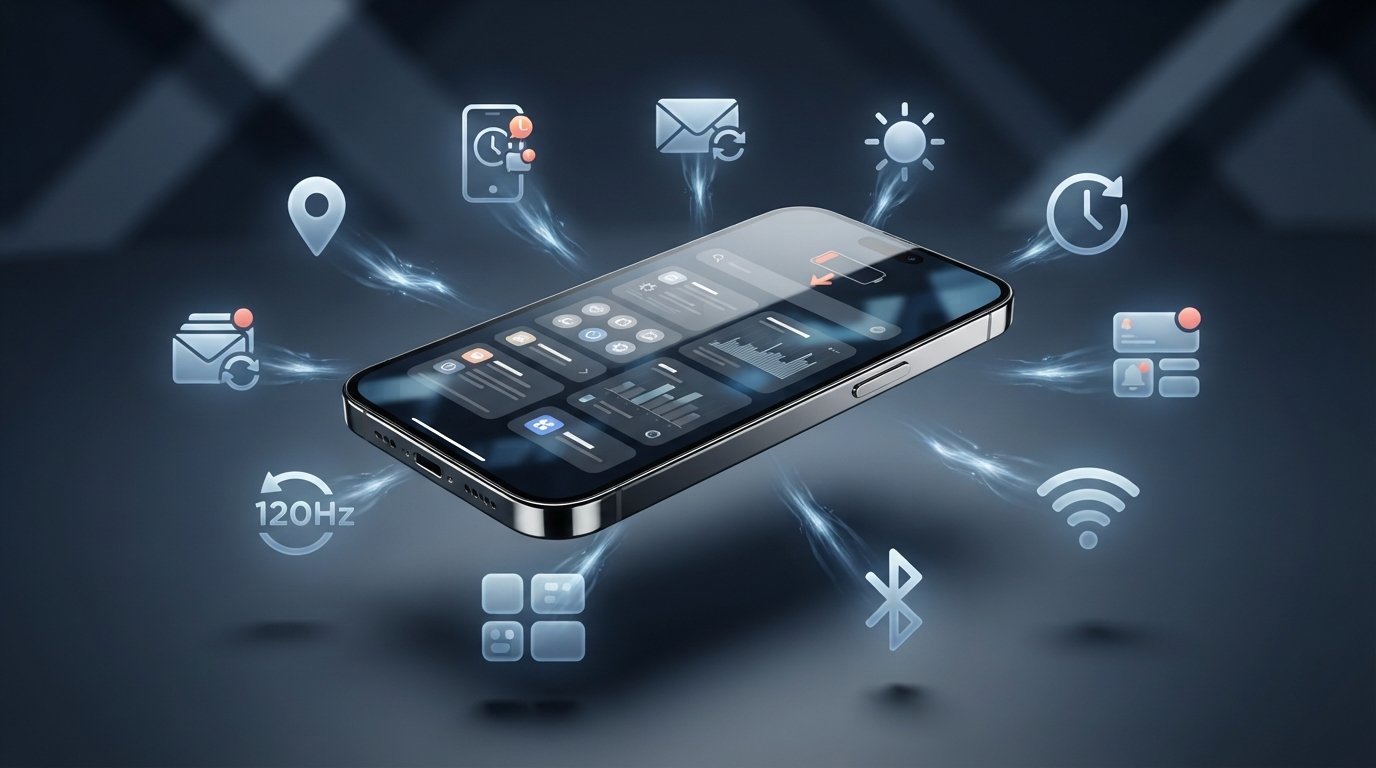
9 Other Settings That Could Be Stealing Your Battery
1. Location Services
Your phone may constantly use GPS and other location signals for apps that don’t really need them.
On iPhone:
- Go to Settings > Privacy & Security > Location Services.
- Select an app and choose While Using the App instead of Always.
- Turn off Precise Location for apps that don’t need your exact position.
On Android:
- Go to Settings > Location > App permissions.
- Select an app and choose Allow only while using the app.
- Turn off Use precise location when it’s unnecessary.
2. Always-On Display
Always-On Display keeps part of your screen active even when your phone is locked.
On iPhone:
- Go to Settings > Display & Brightness > Always On Display.
- Turn Always On Display off if you want maximum standby battery life.
On Android:
- Go to Settings > Lock screen > Always On Display.
- Turn it off, or set it to show only when needed.
3. Push Email and Automatic Sync
Constantly checking for new emails and syncing accounts can quietly use battery.
On iPhone:
- Go to Settings > Apps > Mail > Mail Accounts > Fetch New Data.
- Select Fetch instead of Push, or choose a longer fetch schedule.
On Android:
- Open Settings > Accounts and backup > Manage accounts.
- Select an account and reduce unnecessary Auto-sync activity.
4. Screen Brightness and Auto-Brightness
Your display is often one of the biggest battery consumers, especially at high brightness.
On iPhone:
- Go to Settings > Accessibility > Display & Text Size.
- Turn on Auto-Brightness.
- Keep manual brightness at a comfortable level.
On Android:
- Go to Settings > Display.
- Turn on Adaptive brightness.
- Avoid keeping brightness unnecessarily high.
5. Screen Timeout
A long screen timeout keeps the display running after you’ve stopped using your phone.
On iPhone:
- Go to Settings > Display & Brightness > Auto-Lock.
- Choose 30 Seconds or 1 Minute.
On Android:
- Go to Settings > Display > Screen timeout.
- Choose a shorter timeout such as 30 seconds or 1 minute.
6. Unnecessary Notifications
Every notification can wake your screen, use connectivity, and sometimes trigger background activity.
On iPhone:
- Go to Settings > Notifications.
- Select apps you don’t need alerts from.
- Turn off Allow Notifications.
On Android:
- Go to Settings > Notifications > App notifications.
- Select unnecessary apps and turn their notifications off.
7. High Refresh Rate
A 90Hz or 120Hz display feels smoother but can use more battery than a standard refresh rate.
On iPhone:
- Go to Settings > Accessibility > Motion.
- Turn on Limit Frame Rate if your iPhone supports ProMotion.
On Android:
- Go to Settings > Display > Motion smoothness or Refresh rate.
- Select Adaptive or Standard instead of always using the highest refresh rate.
8. Widgets and Dynamic Wallpapers
Frequently updating widgets and animated wallpapers can add unnecessary background activity.
On iPhone:
- Long-press a widget and tap Remove Widget for unnecessary ones.
- Avoid widgets that constantly update location, weather, or other live information.
- Use a static wallpaper instead of animated effects where possible.
On Android:
- Long-press unnecessary widgets and tap Remove.
- Remove widgets that constantly refresh data.
- Use a static wallpaper instead of live wallpapers.
9. Unused Wireless Features
Bluetooth, Wi-Fi scanning, and other wireless features can contribute to battery use when they’re constantly active.
On iPhone:
- Go to Settings > Bluetooth and turn it off when you don’t need Bluetooth devices.
- Go to Settings > Wi-Fi and disconnect from networks you don’t use.
- Review Settings > Privacy & Security > Location Services > System Services and disable unnecessary location-based services.
On Android:
- Go to Settings > Connected devices > Connection preferences.
- Turn off Bluetooth when you’re not using it.
- Go to Settings > Location > Location services and disable unnecessary scanning options.
How to Find the App That’s Draining Your Battery
On iPhone
- Go to Settings > Battery.
- Check Battery Usage by App.
- Look for apps with high Background Activity.
- Limit or remove apps that consistently drain battery.
On Android
- Go to Settings > Battery > Battery Usage.
- Check which apps use the most power.
- Restrict background battery usage for problem apps.
App or Setting?
If one app has unusually high background usage, it’s likely the culprit. If many apps are draining power, check settings like brightness, location, refresh rate, and background activity.
Final Verdict: Take Back Control of Your Battery
You don’t need to turn off every feature on your phone to improve battery life. Start with the settings that have the biggest impact, such as background activity, location access, screen brightness, and screen timeout. These small changes can reduce unnecessary power consumption without affecting your everyday experience.
The key is to find the right balance. Don’t disable useful notifications or features you regularly depend on just to save a little battery. Instead, focus on apps and settings that quietly consume power in the background. With a few smart adjustments, you can make your battery last longer while keeping your phone fast, convenient, and enjoyable to use.
