
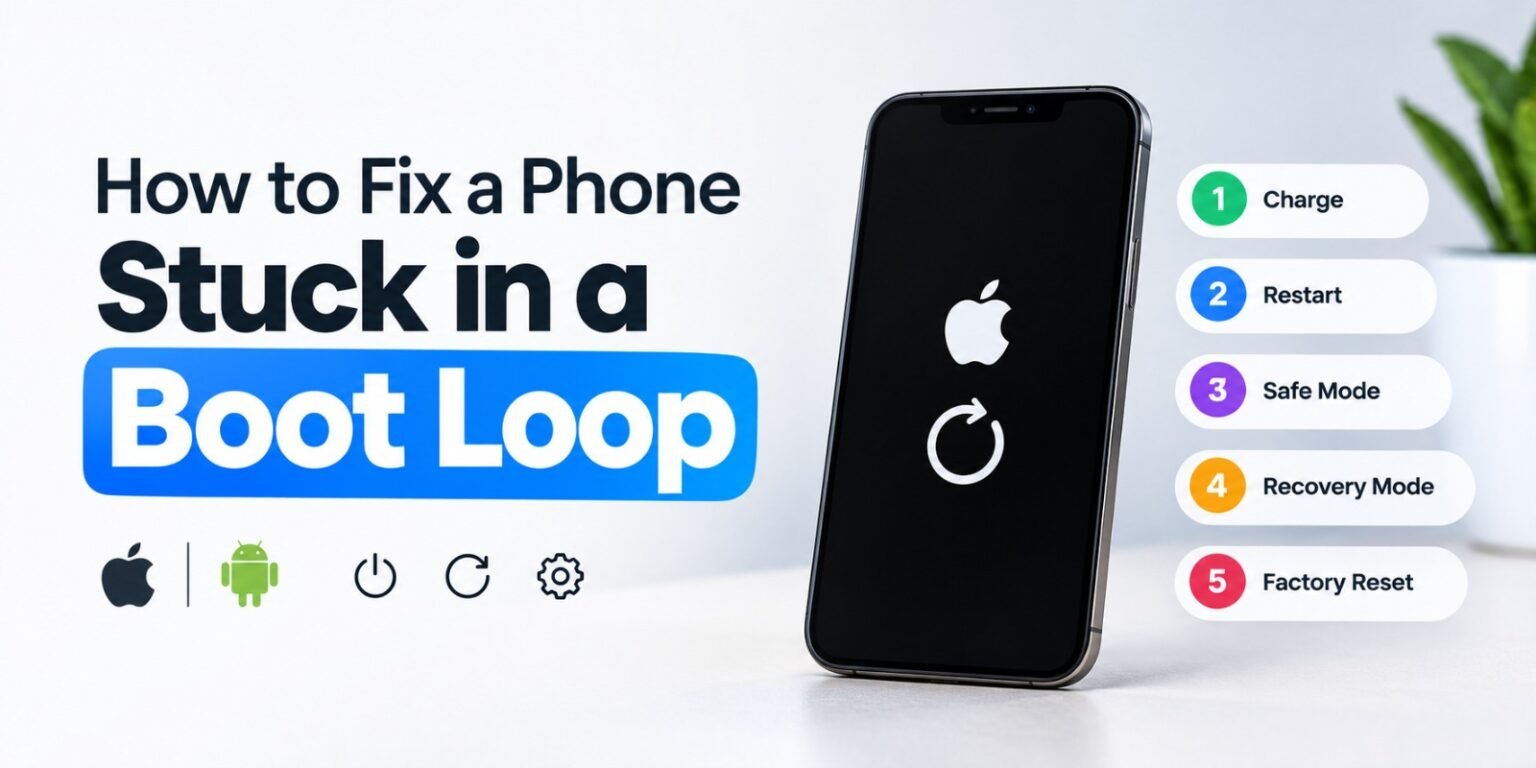
A boot loop means your phone restarts again and again without reaching the home screen. It’s usually caused by a failed update, corrupted system files, a bad app, a full storage drive, or a hardware fault such as a failing battery. Work through these fixes from least to most drastic.
1. Charge the phone fully
A weak or degraded battery can make the phone crash during startup. Plug it into a wall charger (not a laptop port) with a known-good cable for at least 30 to 60 minutes, then try turning it on.
2. Force restart
- iPhone (8 and later): Press and release Volume Up, press and release Volume Down, then hold the Side button until the Apple logo appears.
- iPhone 7: Hold Volume Down and the Side button together for about 10 seconds.
- Samsung: Hold Volume Down and Power for 10 to 15 seconds.
- Pixel and most other Android phones: Hold Power for 20 to 30 seconds, or Power and Volume Up together.
3. Boot into Safe Mode (Android)
Safe Mode loads the phone without third-party apps. If it boots normally, a recently installed app is the culprit.
- While the phone is on the logo screen, hold Volume Down (on some models, Volume Up) until the home screen loads.
- Look for “Safe mode” in the corner.
- Uninstall recently added apps, especially anything installed just before the problem began.
- Restart normally.
4. Clear the cache partition (Android)
This removes temporary system files without touching your data.
- Power off the phone.
- Boot into Recovery Mode. The key combo varies by brand, commonly Power plus Volume Up, or Power plus Volume Down on some models.
- Use the volume keys to select Wipe cache partition and confirm with Power.
- Choose Reboot system now.
5. Restore or update with a computer (iPhone)
- Connect the iPhone to a computer with a cable. Use Finder on a Mac or the Apple Devices/iTunes app on Windows.
- Put the phone in Recovery Mode: press Volume Up, Volume Down, then hold the Side button until the “connect to computer” screen appears.
- When prompted, choose Update first. This reinstalls iOS without erasing your data.
- If Update fails, choose Restore. This erases the phone, so you’ll need a backup to recover your data afterward.
6. Reflash the firmware (Android)
If recovery mode doesn’t help, you can reinstall the stock firmware from a computer:
- Samsung: Use Odin or Samsung Smart Switch’s emergency recovery.
- Pixel: Use Google’s Android Flash Tool in a Chrome browser.
- Other brands: Use the manufacturer’s official tool (Xiaomi’s Mi Flash, Motorola’s Rescue and Smart Assistant, and so on).
Download firmware only from official sources, since the wrong file can permanently brick the phone.
7. Factory reset (last resort for software)
In Android Recovery Mode, choose Wipe data/factory reset. This deletes everything on the phone. Only do it if you have a backup or accept the data loss.
8. Rule out hardware problems
If nothing works, the cause may be physical:
- A swollen or dying battery
- Water damage or corrosion
- A damaged motherboard or storage chip, often after a drop
- A faulty charging port
At this point, a repair shop or the manufacturer’s service center is the right move, especially if the phone is under warranty.
Prevention tips
- Keep at least 10 to 15% of storage free.
- Install updates when the battery is above 50% and the connection is stable.
- Avoid unofficial ROMs, jailbreaks, or apps from untrusted sources.
- Back up regularly to the cloud or a computer so a reset isn’t a disaster.
