
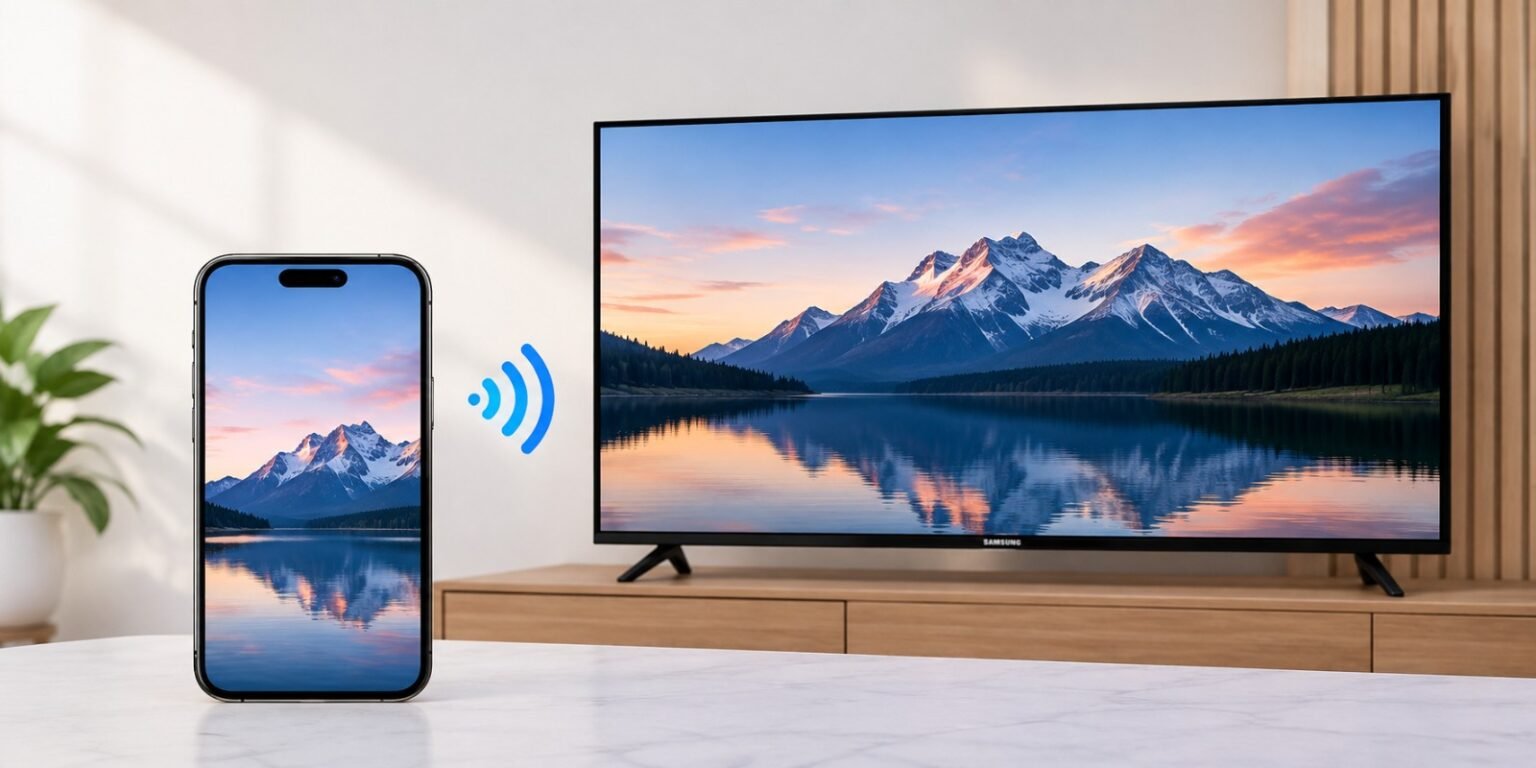
Yes, you can connect an iPhone to a Samsung Smart TV. Most Samsung Smart TVs from 2018 onward support Apple AirPlay, so you can mirror your iPhone screen or stream photos and videos wirelessly. If your TV doesn’t support AirPlay, an HDMI adapter works as a reliable wired alternative.
1. Introduction
Connecting your iPhone to a Samsung Smart TV lets you watch videos, view photos, play games, and share presentations on a bigger screen. You don’t need an Apple TV or any special equipment in most cases.
There are three main ways to do it:
- AirPlay: The easiest wireless method for compatible Samsung TVs.
- Screen mirroring: Shows your entire iPhone screen on the TV, and uses AirPlay on compatible models.
- Wired connection: An HDMI adapter that works with any TV that has an HDMI port, with no Wi-Fi needed.
This guide walks through each method step by step, plus fixes for the most common problems.
2. Check If Your Samsung TV Supports AirPlay
Before you start, confirm your TV supports AirPlay. Samsung added AirPlay 2 to many 2018 models and has included it in most Smart TVs since.
How to check AirPlay compatibility
- Look up your model number. Find it on the sticker on the back of the TV or in Settings > Support > About This TV.
- Check Apple’s list. Apple publishes a list of AirPlay 2-compatible TVs on its support site. Search for your model there.
- Look for the AirPlay menu. If your TV has AirPlay settings (see below), it supports AirPlay.
Make sure both devices are on the same Wi-Fi network
Your iPhone and Samsung TV must be connected to the same Wi-Fi network. This is the most common reason connections fail. Also make sure your router isn’t splitting devices across separate guest or 2.4 GHz/5 GHz networks that can’t communicate.
Where to find AirPlay settings on a Samsung TV
The menu location varies slightly by model year:
- Settings > General > Apple AirPlay Settings
- Settings > Connection > Apple AirPlay Settings (on some newer models)
Make sure AirPlay is turned on. You can also set whether the TV asks for a code every time or only the first time.
3. How to Connect iPhone to Samsung TV Using AirPlay
Follow these steps to mirror your iPhone screen:
- Connect both devices to the same Wi-Fi network.
- Open Control Center on your iPhone. On iPhones with Face ID, swipe down from the top-right corner. On iPhones with a Home button, swipe up from the bottom.
- Tap Screen Mirroring (the icon with two overlapping rectangles).
- Select your Samsung TV from the list.
- Enter the AirPlay code if prompted. A four-digit code appears on the TV screen. Type it into your iPhone.
Your iPhone screen now appears on the TV.
How to stop mirroring
- Open Control Center again.
- Tap Screen Mirroring.
- Tap Stop Mirroring.
You can also turn off Wi-Fi on the iPhone or turn off the TV to end the connection.
4. How to Stream Photos and Videos
You don’t have to mirror your whole screen. Streaming sends only a specific video, song, or photo to the TV.
Steps to stream content
- Open the Photos app or a supported video app.
- Start playing the video or open the photo.
- Tap the AirPlay icon (a triangle with rings) or the Share button, then choose AirPlay.
- Select your Samsung TV.
Streaming vs. mirroring: what’s the difference?
| Feature | Streaming (AirPlay) | Screen Mirroring |
| What shows on TV | Only the selected video, photo, or audio | Your entire iPhone screen |
| iPhone use while playing | You can use your phone for other things | The phone screen is duplicated, so notifications and apps appear |
| Battery use | Lower | Higher |
| Video quality | Typically better, since the TV plays the stream directly | Depends on your screen and connection |
| Best for | Movies, shows, music | Apps, games, presentations, websites |
Tip: For long videos, streaming is usually the better choice.
5. What If AirPlay Doesn’t Work?
If your iPhone can’t find your Samsung TV or the connection keeps dropping, try these fixes in order:
- Check your Wi-Fi connection. Confirm both devices are on the same network and the signal is strong.
- Make sure AirPlay is enabled. Check Apple AirPlay Settings on the TV and confirm it’s turned on.
- Restart both devices. Power off the TV and unplug it for about a minute. Restart your iPhone as well.
- Update your software. On the iPhone, go to Settings > General > Software Update. On the Samsung TV, go to Settings > Support > Software Update.
- Keep devices on the same network. Turn off any VPN on your iPhone, and avoid guest networks.
- Move closer to the router. A weak signal causes lag and disconnects.
- Check Local Network permission. On your iPhone, check that the app you’re casting from has Local Network access under Settings > Privacy & Security > Local Network.
If none of this works, reset the TV’s network settings or try a wired connection.
6. Can You Connect an iPhone Without Wi-Fi?
Yes. A wired connection doesn’t need Wi-Fi at all. It also offers a stable, lag-free picture, which is ideal for gaming or presentations.
What you need
- An adapter that matches your iPhone’s port:
- iPhone 14 and earlier: Lightning Digital AV Adapter (Lightning to HDMI)
- iPhone 15 and later: USB-C to HDMI adapter or USB-C multiport adapter with HDMI
- An HDMI cable
- A Samsung TV with a free HDMI port
Steps
- Plug the adapter into your iPhone.
- Connect the HDMI cable to the adapter.
- Plug the other end into an HDMI port on your Samsung TV.
- Press Source on your Samsung remote.
- Select the correct HDMI input (for example, HDMI 2).
Your iPhone screen will appear on the TV right away.
Note: Some streaming apps limit or block output through HDMI adapters because of copy protection. Many adapters also have a charging port so your iPhone can charge while connected.
7. Can You Use a Third-Party App?
If your Samsung TV doesn’t support AirPlay, a third-party screen-mirroring app may help. Samsung Smart TVs have Smart View built in, and several apps in the App Store can mirror an iPhone to a Samsung TV.
When third-party apps may help
- Your TV is older than 2018 and has no AirPlay.
- You need to cast photos or local videos quickly.
- You want a workaround without buying a cable.
Limitations to know
- Ads and subscriptions: Many apps are free but show ads or require a paid upgrade.
- Compatibility: Results vary by TV model and iOS version.
- Latency: Apps often have more delay than AirPlay, which is a problem for games.
- Privacy: Only install apps from trusted developers and review the permissions they request.
Recommendation: Use AirPlay if your TV supports it. Use HDMI if it doesn’t. Treat third-party apps as a last resort.
8. Common Questions
Can every Samsung Smart TV connect to an iPhone?
Not every model supports AirPlay. Most Samsung Smart TVs from 2018 onward do, but older models may not. If yours doesn’t, use an HDMI adapter or a third-party app.
Why isn’t my Samsung TV showing up on my iPhone?
The usual causes are different Wi-Fi networks, AirPlay turned off on the TV, a VPN on your iPhone, or outdated software. Check that both devices are on the same network, enable AirPlay in the TV settings, and restart both devices.
Can I mirror Netflix or YouTube?
Both services have a built-in app on Samsung Smart TVs, and that is the best way to watch them. Open the Netflix or YouTube app on the TV and sign in. Casting support from iPhone apps varies by service and changes over time, and some apps block mirroring because of copy protection. Check the app’s current support if you want to cast from your phone.
Can I connect an iPhone to a Samsung TV with Bluetooth?
No. Bluetooth can’t send video from an iPhone to a TV. You can use it to play audio through Bluetooth speakers or headphones, but for video you need AirPlay, an HDMI adapter, or a compatible app.
Can I connect without an Apple TV?
Yes. You don’t need an Apple TV if your Samsung TV supports AirPlay 2, because the TV acts as the AirPlay receiver. If it doesn’t, you can use an HDMI adapter instead.
9. Conclusion
Yes, an iPhone can connect to a Samsung Smart TV. AirPlay is usually the simplest wireless method: make sure both devices are on the same Wi-Fi network, open Control Center, tap Screen Mirroring, and choose your TV. For videos and photos, streaming is often better than mirroring. If your TV doesn’t support AirPlay or your Wi-Fi is unreliable, an HDMI adapter is a dependable alternative that works with almost any TV.
