
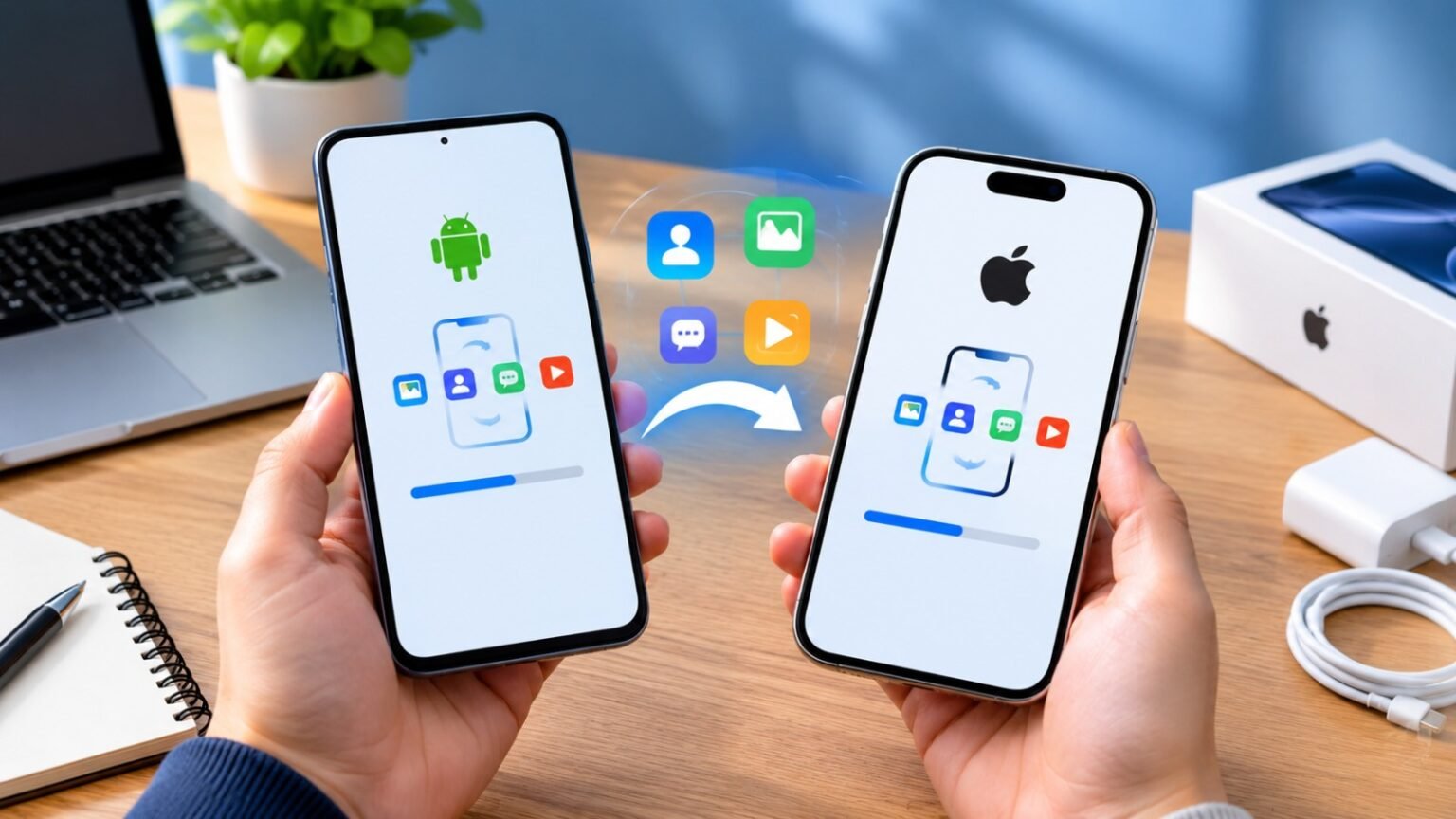
You can get a new phone ready to use in about 10 minutes—even if your photos, apps, and other data continue transferring afterward.
Whether you bought a new Android phone or an iPhone, the basic setup is similar: connect to Wi-Fi, transfer your important data, sign in, install updates, and secure your device.
This guide shows you how to set up a new phone quickly without missing the important steps.
New Phone Setup: 10-Minute Checklist
Here is the quick version before we get into the details:
- 0–2 minutes: Turn on the phone and connect to Wi-Fi
- 2–5 minutes: Connect your old phone and start data transfer
- 5–7 minutes: Sign in to your Google or Apple Account
- 7–8 minutes: Check for software updates
- 8–10 minutes: Set up security and essential apps
Large photo, video, or app transfers can take longer. The goal is to get your phone ready to use, not necessarily finish every background download within 10 minutes.
What You Need Before Setting Up a New Phone
Before starting, keep these things nearby:
- Your old phone
- Your new phone
- A Wi-Fi connection
- Your Google or Apple Account details
- Your old phone’s PIN, password, or passcode
- A charging cable, if you plan to transfer data by cable
If possible, make sure your old phone has a recent backup. This gives you another way to recover important information if the transfer doesn’t go as expected.
Step 1: Turn On and Connect Your New Phone
Press and hold the power button until your new phone starts.
Choose your language and region, then connect the phone to a trusted Wi-Fi network.
Wi-Fi is recommended because your phone may need to download updates, restore apps, and sync your data during setup.
Follow the instructions on screen until you reach the option to transfer or restore your data.
Step 2: Connect Your Old Phone
The easiest way to set up a new phone is usually to transfer information directly from your old device.
How to Set Up a New Android Phone
During Android setup, you’ll normally see an option to copy apps and data from your old phone.
Depending on the devices, you may be able to transfer data wirelessly or with a cable.
Keep both phones close together and follow the instructions displayed on each device.
The exact options can vary by phone manufacturer, Android version, and the type of old phone you’re using.
How to Set Up a New iPhone
If you’re moving from an old iPhone, Apple’s Quick Start feature can help transfer information to your new iPhone.
Place the two iPhones near each other and follow the on-screen instructions.
If you’re moving from Android to iPhone, Apple’s Android-to-iPhone migration process can transfer compatible information.
The available transfer options depend on the devices and software versions involved.
Step 3: Sign In to Your Google or Apple Account
Your account connects your new phone with important services such as apps, contacts, backups, photos, and other synced information.
For Android, sign in with your Google Account.
For iPhone, sign in with your Apple Account.
Using the same account from your old phone can make it easier to restore your existing data and services.
Step 4: Transfer Your Important Data
Now choose what you want to transfer.
Depending on your devices and transfer method, this may include:
- Contacts
- Photos and videos
- Messages
- Calendars
- Apps
- Some device settings
- Wi-Fi information
- Supported account data
You don’t necessarily need to transfer everything.
If your new phone has less storage than your old one, review your data before starting a large transfer.
How Long Does It Take to Transfer Data to a New Phone?
A basic setup can take around 10 minutes, but a complete data transfer may take much longer.
A large photo and video library can take hours to upload or download, especially over a slower Wi-Fi connection.
You can usually start using the phone while some content continues syncing in the background.
Step 5: Check Your Contacts, Photos, and Messages
Once the initial transfer is complete, quickly check your most important information.
Open your contacts and make sure they appear correctly.
Check your photo library and look for your latest photos.
If you’re transferring messages or other cloud-synced information, give the phone some time to finish syncing.
Don’t assume something is permanently missing just because it hasn’t appeared immediately.
Step 6: Install Software Updates
One of the first things you should do on a new phone is check for software updates.
Open Settings and look for the software update section.
Install available official updates before relying heavily on the phone.
Updates can include:
- Security patches
- Bug fixes
- Performance improvements
- New features
- Compatibility improvements
You can also read our guide on whether you should install the latest Android update for more information.
Step 7: Secure Your New Phone
Your phone contains personal information, so security should be part of the initial setup.
Set up a secure screen lock such as:
- PIN
- Password
- Fingerprint
- Face unlock
You should also enable your platform’s device-finding feature.
This can help you locate, lock, or protect the phone if it is lost.
Avoid using an extremely simple PIN that someone could easily guess.
Step 8: Check WhatsApp and Essential Apps
Open the apps you use most and make sure they work correctly.
Pay particular attention to:
- Banking apps
- Cloud storage
- School or work apps
- Password managers
- Authentication apps
Some apps may require you to sign in again on the new phone.
For WhatsApp, check that your chats and important media have been restored correctly if you used a backup.
Step 9: Review Privacy and Battery Settings
You don’t need to change dozens of settings immediately.
Start with the important ones.
Review which apps can access your:
- Location
- Camera
- Microphone
- Contacts
- Photos
Then check your notification settings and disable alerts you don’t need.
You can also review battery settings and enable useful battery-saving features if required.
Step 10: Keep Your Old Phone for Now
Don’t erase or sell your old phone immediately.
Use your new phone for a few days and confirm that your important information is available.
Check your:
- Contacts
- Photos and videos
- Messages
- Files
- Authentication apps
- Important accounts
Once everything is working correctly, you can prepare your old phone for storage, sale, or recycling.
If you’re giving the phone to someone else, remove your accounts and perform a proper factory reset first.
What to Do When You Get a New Phone
If you don’t have time to check every setting immediately, focus on these priorities:
First: Transfer your important data.
Second: Sign in to your main account.
Third: Install software updates.
Fourth: Set up a secure screen lock.
Fifth: Check important apps such as WhatsApp, banking, email, and authentication apps.
You can customize the rest of the phone later.
Android vs. iPhone: What Is Different?
The basic process is similar on both platforms:
Connect → Transfer → Sign in → Update → Secure → Check
The main difference is the ecosystem.
Android phones rely heavily on Google services, while iPhones use Apple’s account, iCloud, and Quick Start features.
Android transfer options can also vary between manufacturers.
For both platforms, the exact setup screens and available transfer features may change depending on the phone model and software version.
Common New Phone Setup Mistakes
Erasing Your Old Phone Too Early
Don’t factory reset your old phone before checking that your important information has reached the new device.
Skipping Software Updates
A new phone may not have the latest software installed. Check for updates during or immediately after setup.
Forgetting Account Passwords
Your Google or Apple Account may be needed to restore apps, photos, contacts, and other information.
Giving Apps Too Many Permissions
Review app permissions instead of automatically allowing access to your location, camera, microphone, contacts, or photos.
Installing Everything Immediately
You don’t need every old app on your new phone.
Start with the apps you actually use and install others when needed.
Frequently Asked Questions
How long does it take to set up a new phone?
The basic setup can often be completed in around 10 minutes. A complete transfer of photos, videos, apps, and other data can take much longer.
Should I charge my new phone before setting it up?
If the phone has enough battery, you can start immediately. For a large data transfer, keeping it connected to a charger is a good idea.
Should I transfer everything from my old phone?
Not necessarily. Transfer the information you need, such as contacts, photos, messages, and important apps. Review your storage if the new phone has less capacity.
How do I transfer data to a new phone?
Android and iPhone both provide built-in transfer or backup options. The exact method depends on your old and new devices.
Should I update my new phone immediately?
Yes. Check for official software updates during or immediately after the setup process.
Should I keep my old phone after transferring my data?
Yes. Keep it until you’ve confirmed that your important data, accounts, and apps are working correctly on your new phone.
What should I do before selling my old phone?
Back up your information, transfer anything you still need, remove your accounts, and perform a factory reset before giving the phone to someone else.
Final Takeaway
Setting up a new phone doesn’t have to take all day.
In about 10 minutes, you can connect your phone, start transferring your data, sign in to your account, install updates, and secure the device.
Your photos, videos, apps, and other files may continue syncing afterward, especially if you have a large amount of data.
The most important rule is simple: don’t erase your old phone until you’ve confirmed that everything important is safely available on your new device.
