
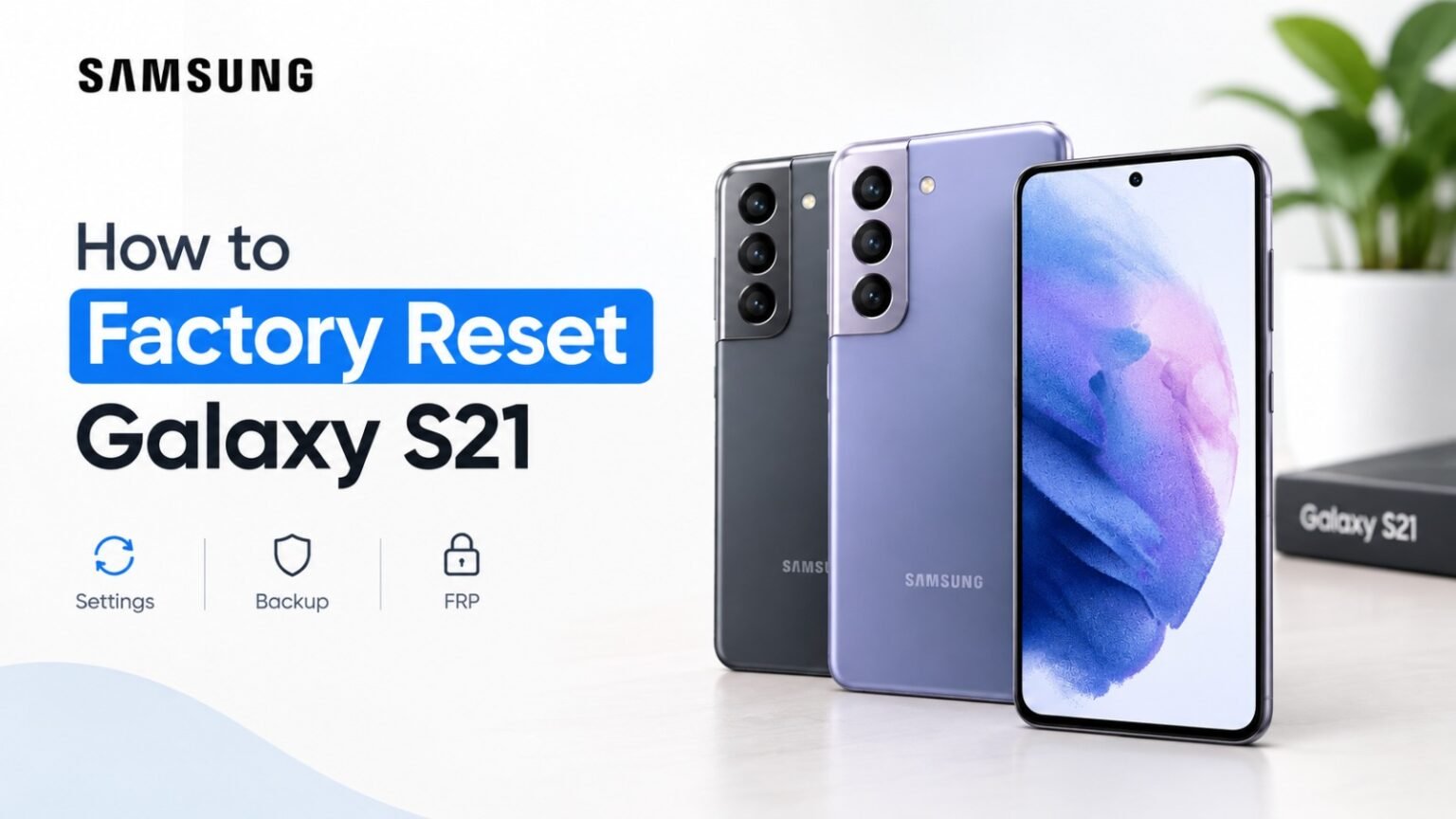
Is your Samsung Galaxy S21 running slowly, freezing, or having software problems? Or are you preparing the phone for a new owner?
A factory reset can remove your personal data and return the Galaxy S21 to its factory software state. The same basic reset process applies to the Galaxy S21, S21+, and S21 Ultra.
In this guide, you’ll learn how to reset your S21 from Settings or Recovery Mode, what to back up first, and how to avoid common FRP problems.
Quick Answer
To factory reset a Samsung Galaxy S21, go to:
Settings → General Management → Reset → Factory Data Reset → Reset → Delete All
The process erases personal data, installed apps, accounts, and customized settings stored on the phone. Back up anything important before continuing.
If you’re selling or giving away the phone, remove your Google account and other personal accounts before the reset.
Does This Work on the Galaxy S21, S21+, and S21 Ultra?
Yes. The Galaxy S21, S21+, and S21 Ultra use the same basic factory-reset process.
The phones have different screen sizes, cameras, batteries, and other hardware features, but those differences don’t normally change the factory-reset steps.
Whether you have the standard S21, S21+, or S21 Ultra, you can follow the instructions below.
What Does a Factory Reset Do?
A factory reset removes personal data and customized information stored on the phone.
This can include:
- Photos and videos stored locally
- Installed apps and their local data
- Contacts saved on the device
- Google and other accounts
- Downloaded files
- Call history
- Saved Wi-Fi networks
- Personal settings and preferences
- Other locally stored personal information
After the reset, the phone returns to its factory software state and starts the initial setup process.
A factory reset is different from a force restart, which simply restarts the phone without intentionally erasing your personal data.
Before Resetting Your Galaxy S21
1. Back Up Your Important Data
Don’t reset the phone until you’ve checked that your important files are backed up.
You can use:
- Google Photos for photos and videos
- OneDrive or another supported cloud service
- Samsung Smart Switch to transfer or back up supported data
- A computer and USB cable for important files
Also back up WhatsApp chats and other app-specific data if required.
2. Check Secure Folder
If you use Samsung Secure Folder, check it before resetting the phone.
Important files stored only inside Secure Folder should be backed up or moved somewhere safe before the factory reset.
A factory reset is designed to erase user data from the device, so don’t assume Secure Folder content will remain afterward.
3. Make Sure You Know Your Google Account
If you’re keeping the phone, make sure you know the Google account and password that were previously used on the device.
This is particularly important if you later need to complete account verification during setup.
4. If You’re Selling the Phone
Before giving the phone to another person:
- Back up your data.
- Remove your Google account.
- Remove other personal accounts.
- Remove your SIM card.
- Remove a microSD card if you’re using one.
- Perform the factory reset.
- Leave the phone at the initial setup screen.
Removing your accounts before selling the phone helps prevent the next owner from encountering account-verification or FRP-related problems.
What Is Factory Reset Protection (FRP)?
Factory Reset Protection (FRP) is an Android security feature designed to help prevent unauthorized use of a device after certain factory resets.
After a reset, the phone may ask for a Google account that was previously used on the device before setup can continue.
This is why you should remove your Google account before selling or giving the phone away.
How to Remove Your Google Account
On the Galaxy S21, open:
Settings → Accounts and Backup → Manage Accounts
Select your Google account and tap:
Remove Account
Follow the on-screen instructions.
Method 1: Factory Reset Samsung Galaxy S21 From Settings
This is the easiest method when your phone turns on and responds normally.
Step 1: Open Settings
Open the Settings app.
You can also swipe down from the top of the screen and tap the gear icon.
Step 2: Open General Management
Scroll down and tap:
General Management
Step 3: Select Reset
Tap:
Reset
Step 4: Select Factory Data Reset
Tap:
Factory Data Reset
The phone will show information about the data that will be removed.
Step 5: Start the Reset
Scroll down and tap:
Reset
Enter your PIN, password, or pattern if requested.
Step 6: Confirm
Tap:
Delete All
The Galaxy S21 will restart and begin erasing the phone.
After the process finishes, you’ll see the initial setup screen.
Important: Make sure the phone has enough battery before starting the reset. If possible, keep it connected to a charger during the process.
Method 2: Factory Reset Samsung Galaxy S21 Using Recovery Mode
Recovery Mode can be useful when the phone cannot be reset through Settings or cannot start normally.
The exact Recovery Mode behavior can vary by software version. If the button combination does not work, connecting the phone to a computer with a USB-C cable may help.
Step 1: Turn Off the Phone
Turn off the Galaxy S21 completely.
Step 2: Enter Recovery Mode
Press and hold the:
Volume Up + Power (Side)
buttons together.
If Recovery Mode does not appear, connect the phone to a computer using a USB-C cable and try again.
Step 3: Release the Buttons
When the Samsung logo or Recovery screen appears, release the buttons.
Step 4: Select Wipe Data/Factory Reset
Use the Volume Down button to highlight:
Wipe Data/Factory Reset
Press the Power (Side) button to select it.
Step 5: Confirm
Select the option that confirms the factory reset.
The phone will erase its user data.
Step 6: Reboot
When the process is complete, select:
Reboot System Now
The phone will restart and display the setup screen.
Note: Recovery Mode instructions can vary between software versions and regional or carrier models. If these steps don’t work, check Samsung’s official support information for your exact model.
Galaxy S21 Frozen? Try a Force Restart First
If your Galaxy S21 is frozen but you don’t want to erase your data, try a force restart first.
Press and hold:
Volume Down + Power (Side)
for about 7 seconds.
The phone should restart.
A force restart does not perform a factory reset and does not intentionally erase your personal data.
Soft Reset vs. Force Restart vs. Factory Reset
Not sure which option you need?
| Reset Type | What It Does | Deletes Personal Data? | Best Used When |
| Soft Reset | Normally restarts the phone | No | Minor software problems |
| Force Restart | Forces an unresponsive phone to restart | No | Phone is frozen |
| Factory Reset | Erases personal data and restores factory software state | Yes | Major software problems or before selling |
What Happens After the Reset?
After the Galaxy S21 restarts, you’ll see the initial Android setup screen.
If you’re keeping the phone:
- Select your language.
- Connect to Wi-Fi or mobile data.
- Sign in to your Google account.
- Restore your backup.
- Reinstall your apps.
- Sign in to your other accounts.
- Install available software updates.
If you’re selling or giving away the phone, don’t sign back into your accounts. Leave the phone at the setup screen for the new owner.
Common Problems After a Galaxy S21 Factory Reset
The Phone Asks for a Google Account
This can happen because of Factory Reset Protection.
Use the Google account that was previously associated with the device.
If you can’t remember your password, use Google’s official Account Recovery service.
Recovery Mode Won’t Open
Try connecting the Galaxy S21 to a computer with a USB-C cable and repeat the Recovery Mode button combination.
If that still doesn’t work, check Samsung’s support instructions for your specific model and software version.
The Phone Is Still Slow After Resetting
Give the phone some time to complete setup, restore data, and install updates.
Restoring many apps and files at once can temporarily affect performance.
If serious problems continue after the reset, the issue may not be caused by software alone.
Does the Samsung Galaxy S21 Still Get Updates in 2026?
The Galaxy S21 launched in 2021, so it is an older Galaxy S-series generation by 2026.
Software-support availability can depend on the exact model, region, carrier, and Samsung’s current update policy. Before relying on the phone for several more years, check Samsung’s current security-update information for your specific model.
A factory reset does not extend the phone’s software-support period. It only removes user data and restores the device to its factory software state.
Frequently Asked Questions
How do I factory reset a Samsung Galaxy S21?
Go to Settings → General Management → Reset → Factory Data Reset → Reset → Delete All.
Does a factory reset delete everything on the Galaxy S21?
It removes personal data, installed apps, accounts, and customized settings stored on the phone. Always make a backup before resetting.
Can I reset a frozen Galaxy S21?
Yes. If you don’t need to erase the phone, try a force restart first. If you need to erase the device and cannot access Settings, Recovery Mode may be used.
Should I remove my Google account before selling my S21?
Yes. Remove your Google account and other personal accounts before performing the factory reset. This helps prevent FRP-related setup problems for the next owner.
Will a factory reset remove Secure Folder data?
A factory reset is intended to erase user data from the device, including data stored in Secure Folder. Back up anything important before resetting.
Does a factory reset improve an old Galaxy S21?
A factory reset can resolve some software-related problems caused by corrupted settings, unwanted apps, or accumulated software issues. It cannot repair damaged hardware or extend the device’s software-support period.
How long does a Galaxy S21 factory reset take?
The reset itself normally takes several minutes. The complete process can take longer if you need to restore a large backup and reinstall many apps.
Final Thoughts
Factory resetting the Samsung Galaxy S21 is straightforward, but preparation matters.
Back up your important files, check Secure Folder, and make sure you know your Google account details before starting. If you’re selling or giving away the phone, remove your accounts first and leave the device at the initial setup screen after the reset.
For a normally working Galaxy S21, the Settings method is the simplest option. If the phone cannot start normally, Recovery Mode provides another way to erase the device.
The same basic procedure applies to the Galaxy S21, S21+, and S21 Ultra, so you can use this guide regardless of which S21 model you own.
