
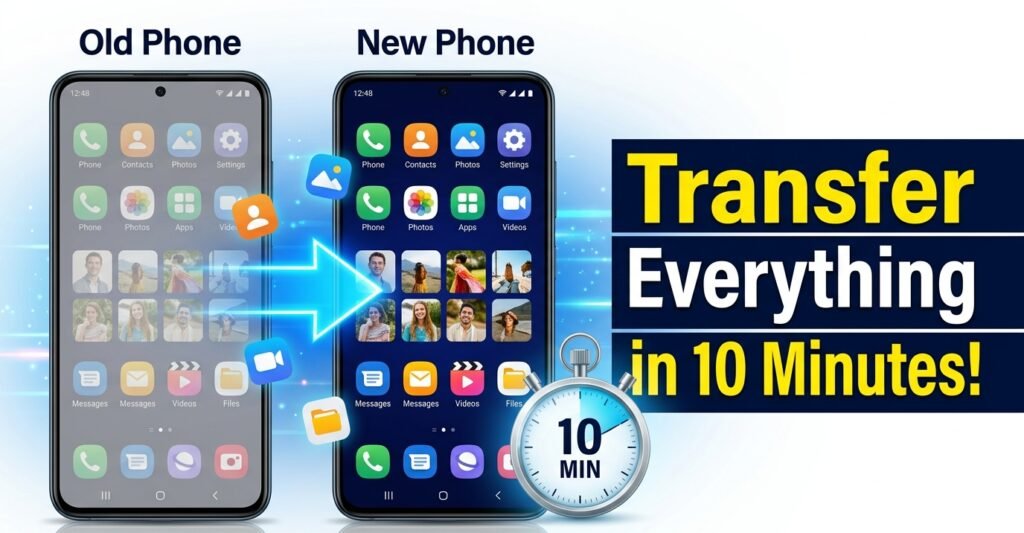
Getting a new phone is exciting, but moving your contacts, photos, apps, messages, and settings can feel overwhelming. The good news is that if you’re switching to a new Android phone, you can transfer everything from your old phone to a new one in under 10 minutes using Android’s built-in data transfer tools. Whether you choose a USB cable, Wi-Fi, or a Google Backup, the process is fast, secure, and designed to make your transition as smooth as possible.
Most modern Android devices allow you to transfer data from Android to Android with just a few simple steps. You can move important content such as contacts, photos, videos, apps, SMS messages, call history, calendars, wallpapers, Wi-Fi passwords, and many device settings without manually copying each file. If you’re wondering how to move data to a new phone, Android offers several reliable methods that work for both beginners and experienced users.
In this guide, you’ll learn the fastest ways to transfer data to a new Android phone using Google Backup, a USB cable, or a trusted phone transfer app. We’ll also explain what data you can and can’t transfer, how to prepare before you start, common problems you may encounter, and practical tips to ensure a quick, secure, and hassle-free Android data transfer. Whether you’re upgrading to the latest Android device or replacing an older phone, this guide will help you complete the process with confidence.
What You Can Transfer
When you set up your new Android phone, you can move most of your important data from your old device. The exact items that transfer may vary depending on your phone model, Android version, and the transfer method you choose.
Here’s what you can typically transfer:
- Contacts – Saved contacts from your Google account or device.
- Photos and Videos – Images and videos stored on your phone.
- Apps – Most apps downloaded from the Google Play Store.
- Messages – SMS and MMS conversations.
- Call History – Recent incoming, outgoing, and missed calls.
- Calendar Events – Events synced with your Google account.
- Device Settings – Wallpapers, Wi-Fi passwords, display preferences, and other supported settings.
- Documents and Files – Compatible files stored on your device.
- Music – Audio files saved locally on your phone.
What Cannot Be Transferred?
While Android can transfer most of your important data, some content may not move automatically. What transfers depends on your device, Android version, and the apps you use.
The following items may require manual setup or transfer:
- Some app data – Certain apps don’t allow all of their data to be transferred.
- Downloaded APK files – Apps installed from outside the Google Play Store usually need to be reinstalled manually.
- Secure folder content – Files stored in secure or encrypted folders often won’t transfer automatically.
- App logins – For security reasons, many apps require you to sign in again on your new phone.
- DRM-protected content – Some purchased or protected media may not be available on your new device until you download it again.
- Hidden or unsupported files – Files stored in certain system folders may need to be copied manually.
Before You Start the Transfer
Explain preparation steps.
Charge Both Phones
Keep both devices above 50% battery.
Connect to Wi-Fi
A stable Wi-Fi connection speeds up cloud restores and wireless transfers.
Update Both Phones
Install the latest software updates to avoid compatibility issues.
Back Up Important Data
Create a Google Backup or iCloud Backup before transferring.
Free Up Storage
Ensure your new phone has enough storage for all your data.
Method 1: Transfer Data Using Google Drive Backup
Google Drive Backup lets you move your contacts, apps, photos, messages, and settings to a new Android phone in just a few steps.
- On your old phone, go to Settings > System > Backup and turn on Back up to Google Drive.
- Tap Back Up Now and wait for the backup to finish.
- Turn on your new phone and sign in with the same Google account.
- During setup, select Restore from a Google Backup.
- Choose your latest backup and follow the on-screen instructions to complete the transfer.
- Menu names may vary depending on your Android version and phone brand.
Method 2: Transfer Data Using a USB Cable
A USB cable provides one of the fastest ways to transfer your data directly between two Android phones.
- Connect your old and new phones using a compatible USB cable (and an adapter if required).
- On your old phone, tap Transfer files or Copy data when prompted.
- On your new phone, follow the on-screen instructions to detect the old device.
- Select the data you want to transfer, then tap Start to begin the process.
- The available options may vary depending on your phone brand and Android version.
Method 3: Transfer Data Using a Transfer App
If the built-in transfer methods don’t work, you can use a dedicated phone transfer app to move your data.
- Install the same phone transfer app on both Android devices.
- Connect the phones using Wi-Fi or by scanning the QR code shown in the app.
- Select the data you want to transfer, such as contacts, photos, videos, apps, and messages.
- Tap Transfer and wait for the process to finish.
- Use a trusted transfer app from the Google Play Store for a secure and reliable experience.
Manufacturer Transfer Apps
Many Android brands offer their own transfer apps, making it easy to move your data from an old phone to a new one. If you’re staying with the same brand, these tools can help transfer contacts, photos, apps, messages, and settings with minimal effort.
| Phone Brand | Transfer App |
| Samsung | Smart Switch |
| Google Pixel | Android Data Transfer |
| OnePlus | Clone Phone |
| Xiaomi | Mi Mover |
| OPPO | Clone Phone |
| vivo | EasyShare |
| realme | Clone Phone |
Troubleshooting Common Transfer Issues
If your data transfer doesn’t go as planned, try these quick fixes:
- Not enough storage? Check Settings > Storage on your new phone and free up space by deleting unnecessary files or apps.
- Is the transfer slow? Connect to a stable Wi-Fi network or use a USB cable for faster speeds.
- Backup not showing? Make sure you’re signed in with the same Google account used to create the backup.
- Transfer failed? Restart both devices and try the process again.
Tip: Ensure both phones have enough battery and stay connected throughout the transfer process.
Frequently Asked Questions (FAQs)
Can I transfer data after setting up my new phone?
Yes. You can restore data from a Google Backup or use some manufacturer-specific transfer apps. However, the easiest and most complete transfer happens during the initial setup of your new Android phone.
Is a USB cable faster than Wi-Fi?
Yes. A USB cable is generally faster and more reliable than wireless transfer, especially when moving large amounts of data, such as photos, videos, and apps.
Will my WhatsApp chats transfer?
Yes, if you follow WhatsApp’s official chat transfer process or restore your chats from a Google Drive backup. Make sure you’re using the same phone number and Google account.
Can I transfer data without a Google account?
Yes. You can transfer data directly between two Android phones using a USB cable or, on some devices, a wireless transfer. However, a Google account is required to restore data from Google Backup.
Will my contacts and messages transfer automatically?
Yes. If you choose to copy them during the transfer process or restore a Google Backup, your contacts and SMS messages will transfer automatically to your new Android phone.
Conclusion
Transferring everything from your old phone to a new one has never been easier. Whether you use the built-in setup process, a Google backup, a USB cable, or your phone manufacturer’s transfer tool, you can move your contacts, photos, apps, messages, and settings in under 10 minutes. Before you begin, make sure both devices are charged, connected to a stable Wi-Fi network, and have enough storage space for a smooth transfer. Once the process is complete, take a few moments to verify that all your important data has been copied successfully and sign in to your essential apps. With everything in place, you can start exploring your new phone without worrying about losing valuable information. By following the methods in this guide, you’ll enjoy a fast, secure, and hassle-free transition to your new device.
Once your data is safely moved over, the next question is what to do with the phone itself — see our full guide on what to do with your old phone.
